Preliminary Remarks
The family offer allows customers to buy one subscription and invite designated family members to access the same services or products. The primary account holder manages the subscription while family members enjoy the included benefits.
Prerequisites: Before creating a family offer, product contracts must be created that define:
Contract terms and conditions
Pricing structure
Maximum user count (specifying how many family members can be invited)
Note
When creating product contracts, please note that the administrator (the person purchasing the offer) automatically has access to the subscription and is included in the maximum number of users.
Example: Number of additional users (5) + admin access (1) = maximum user count (6)
Offer Structure: Family offers support flexible configurations including:
Single or multi-step offers (such as trial periods followed by regular billing)
Individual products, multiple separate products, or bundled product packages
Note
When using bundled products, all product contracts must have identical maximum user counts as the users are automatically invited/added to all products.
For offers containing multiple products, all product contracts must share the same contract terms.
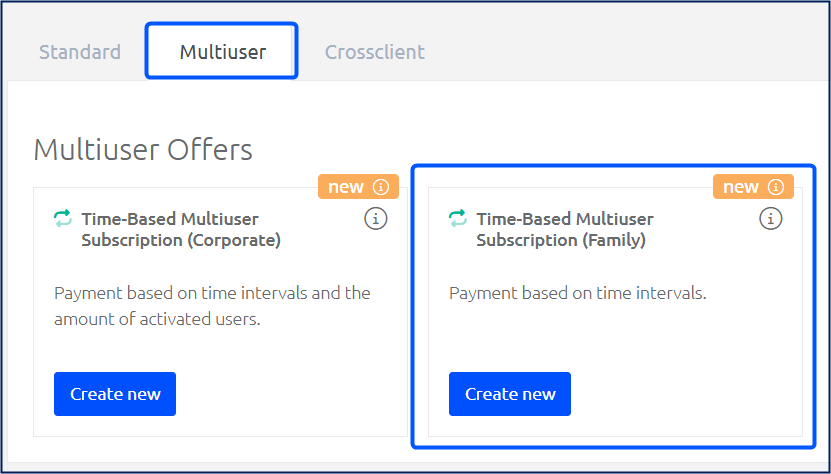
Create a Multiuser Family Offer
Base data
Enter Internal title.
Enter the invitation URL.
Invited users are redirected to this URL to redeem their invitation code and activate their access. The URL is stored in theMulti-User Invitation template (new feature version)using the variable {{.multiuserData.invitationUrl}}.Note
You must provide the website and the URL. You can find a description of the technical implementation for using the URL and adding users to the subscription here: Multiuser Subscriptions
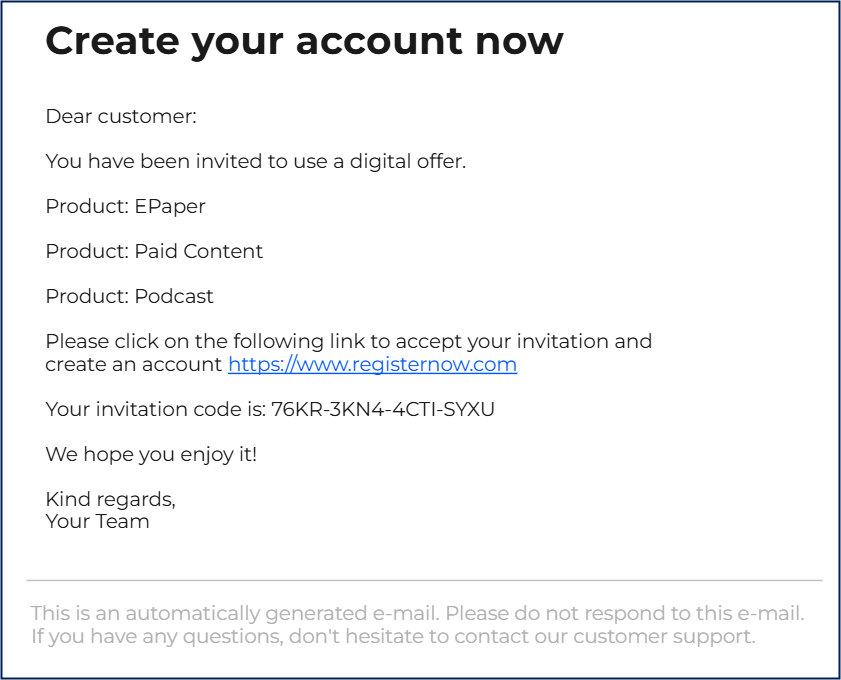
Example for email with URL
The following URL is included in the offer: https://www.registernow.com.
The offer is purchased—thereby activating the main subscription. The subscription administrator (primary user) then invites additional users to use the subscription. The email is sent with the URL specified in the offer. The invited user can now visit the URL to redeem the invitation code.
Optionally assign to a folder structure.
Define the number of steps of the offer.
Define public offer information.
Offer*: Public title to be shown to customers in the checkout.
Legal advice*
Additional title description
Description
Summary
Optionally, add a misuse rule.
Define external management, if desired.
Products
Click on +Add product in the left-hand box to create a new product.
Complete the product information in the box on the right:
Product Information
Internal Title
This title is only for internal allocation and is not displayed to the customers.Delivery List
Access Right
Gives users access to the services provided.
Accounting and Taxes
Ledger and Cost Center (optional)
Important for correct bookkeeping.Tax Type*
Automatically calculates the correct tax rate.
Product details per step
Product title*
This title is displayed to customers in the checkout.Legal advice
Summary
Automatically, only the multiuser product contracts are shown and can be selected.
→ As soon as all mandatory fields have been filled in, another product can be added.
Family offers can contain
one product,
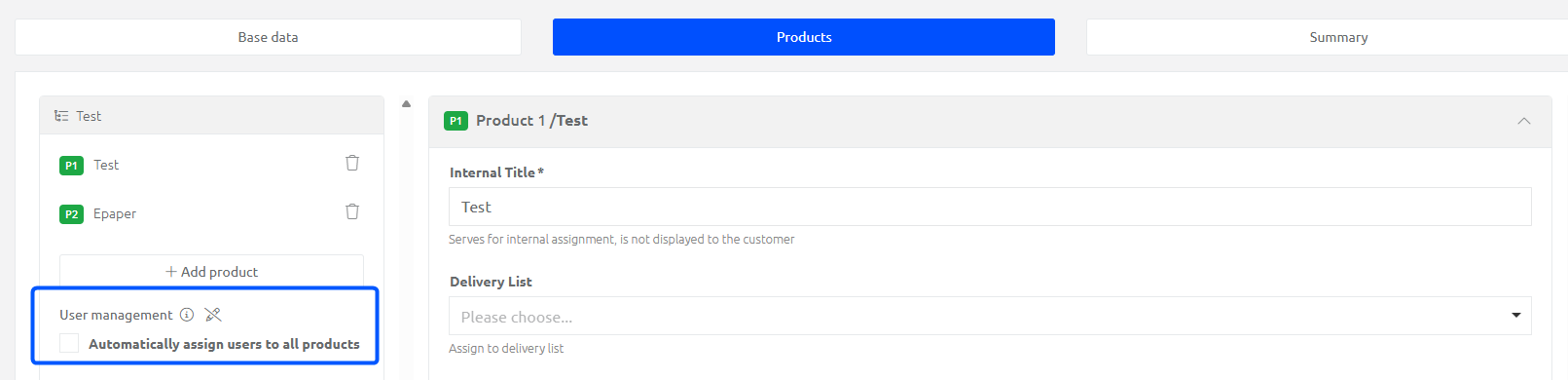
several separate products
Note
The maximum user count may vary from each product because user management operates at the product level. One user can be added to a single specific product, while another user can be added to more products, depending on their needs.
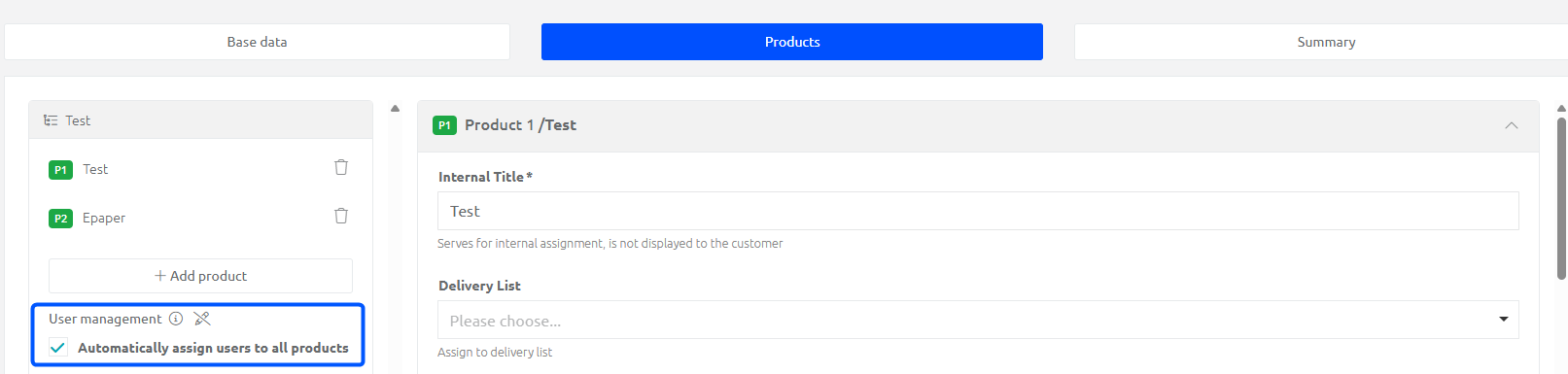
several products within a bundle.
Note
Bundle offers contain several products that are bundled together as a cohesive unit. The maximum user amount for all products must be identical because the system automatically adds users to all products within the bundle simultaneously.
Summary
An overview of the offer created is displayed here so that it can be edited again, if necessary.