Preliminary Remarks
Frisbii Media offers the option of creating and customizing various invoice templates.
One template can be used for all invoices. However, each template can also be explicitly assigned to an offer.
In the list view, a distinction is made between different types (B2C, B2B, B2C Event, B2B Event) under Invoice Type. However, this only serves as an example and is not automatically applied to the offers.
Templates must be actively approved before they can be used in day-to-day business.
The editing mode is organized in such a way that it is immediately clear which information is displayed at which position in the PDF.
Create invoice templates
In the list under Commands, click on + Add. The editing mode opens.
The following settings can be made:
Design: Frisbii Media offers 5 different design templates to choose from.
Position of the logo: Where the logo appears on the PDF.
Logo: Upload company logo.
Text 1: Can be used for contact data, for example (max. 5 rows of 100 characters each).
Sender address line: Appears above the address in the letter window.
Invoice details: Show data below or next to it.
Position of the invoice heading
Text 2: Free text, appears above the table in which the offer details are listed.
Activate/deactivate checkboxes
Show Delivery/Service Date
Show Offer ID
Show Subscription ID
Show Additional Title Description (from the offer creation)
Address Display: Use the drop-down menu to set the address display.
Text 3: Free text, appears below the table.
Text 4: Free text, appears below the table.
Footer columns: Footer can consist of 4 segments.
Text size: For each free-text row in the header (Text 1), above the table (Text 2) and below the table (Text 3 and Text 4), you can choose the text size Normal, Smaller or Smallest. New rows use Normal by default.
Click on Save.
→ The template is initially saved as a draft and is not yet automatically approved.
Tip
If a row such as your e-mail address or company name doesn't fit on one line, set the text size of that row to Smaller or Smallest. Existing templates keep their current text size until you change it.
Approve draft
In order to use the invoice template, you need to approve the draft first.
In the list view, click on Approve Draft.
Note
As soon as the new draft has been approved, the old live template is overwritten.
Multiple templates cannot be activated in one invoice type.
Edit template
In the list view, click on Edit.
Make the changes.
Click on Save.
Approve the draft.
Copy template
Tip
Save yourself time and effort. Start by creating a standard template—which you can then copy and quickly customize.
In the list view, click on Details.
In the action bar, click on Copy.
Use the drop-down menu to choose where the template should be copied to.
Assign invoice templates to offers
Invoice templates can be explicitly assigned to any number of offers.
Open the Products menu item.
Open menu item Offers.
Select any offer.
Open Extended Offer Data in the action bar.
Click on Invoice Template.
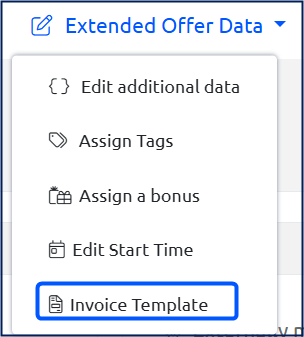
A new dialog window opens.
Use the drop-down menu to select the invoice template that has already been created.