---
title: "Upgrade to New Checkout"
slug: "upgrade-to-new-checkout"
updated: 2026-06-26T10:06:32Z
published: 2026-06-26T10:06:32Z
canonical: "help.frisbii.com/upgrade-to-new-checkout"
---
> ## Documentation Index
> Fetch the complete documentation index at: https://help.frisbii.com/llms.txt
> Use this file to discover all available pages before exploring further.
# Upgrade to New Checkout
### Upgrade in the Merchant Backend
Please note that after updating to the new checkout version, all previous checkout variants in the Merchant Backend will no longer be available and cannot be maintained, as they are no longer supported by the new version.
1. Log in to your [STAGE Merchant Backend](https://backend.plenigo-stage.com/login).
2. Save your CSS/Javascript from menu item **Settings** > **Applications** > **Checkout**. If you do not have any custom CSS/Javascript, you can skip this step. 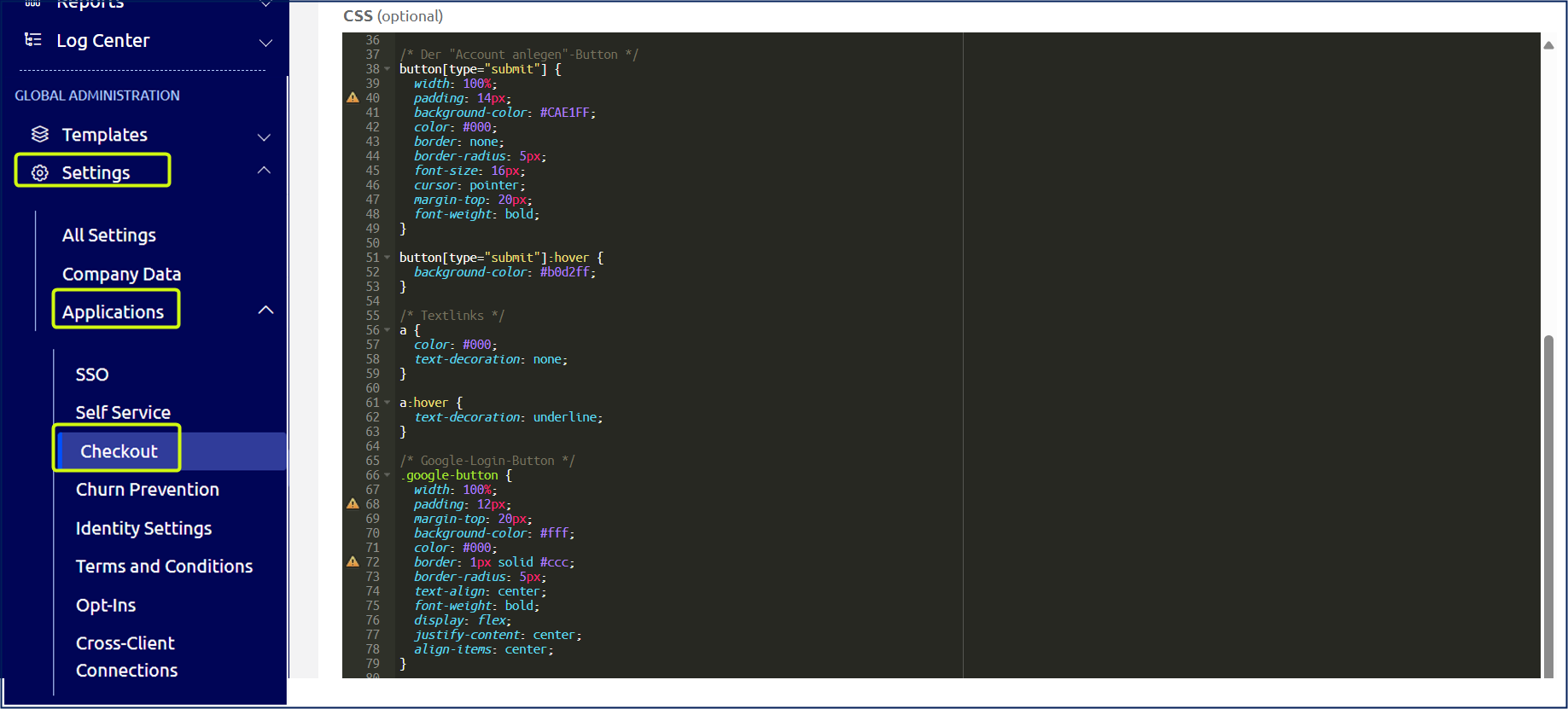
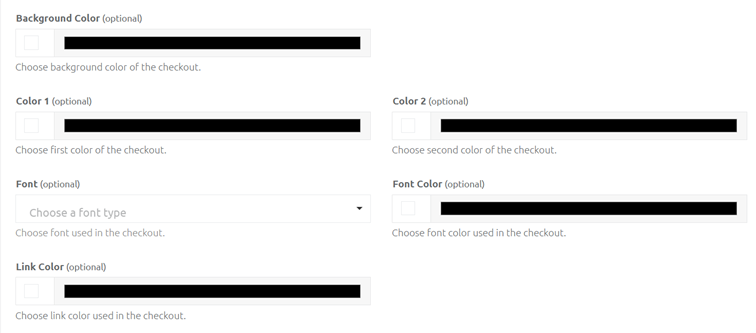
💡 In the new checkout editor, the color boxes with which the colors could be adjusted are no longer available. If you have only adjusted your colors, you can copy the [CSS provided by us](/frisbii-media/docs/css-beispiel) and insert your color codes accordingly
.
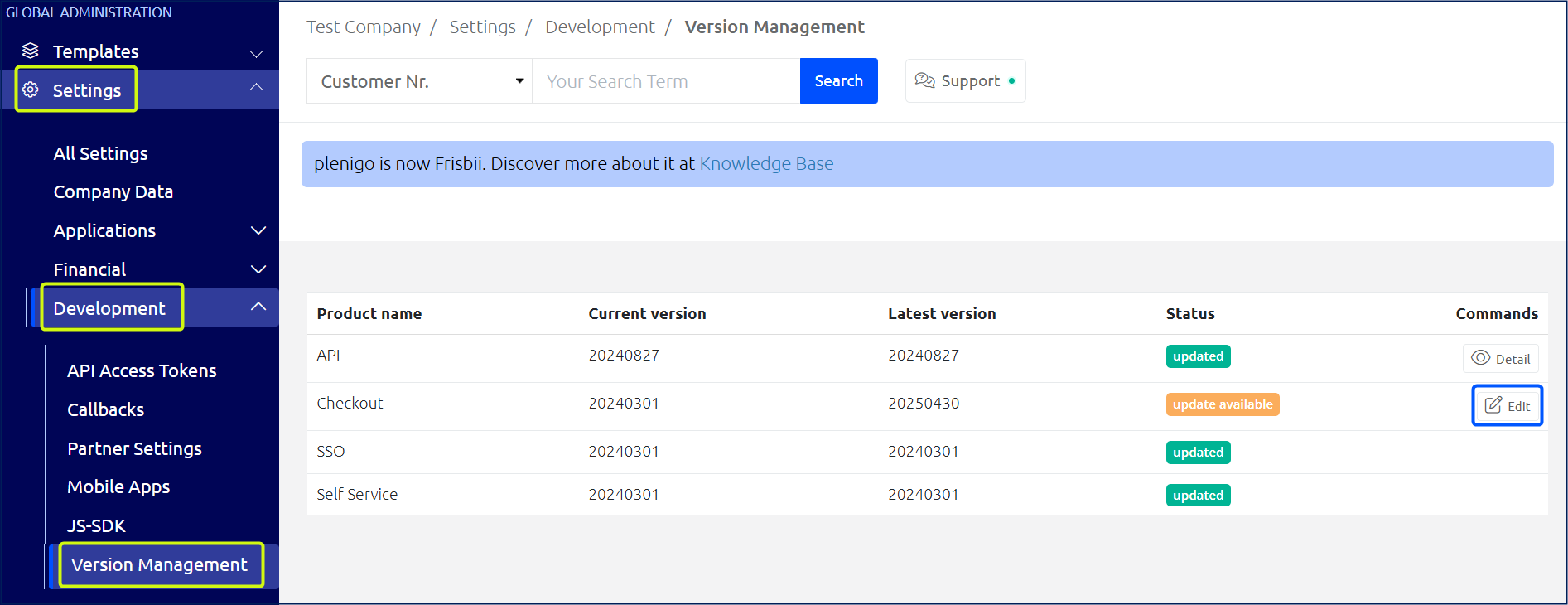
1. Go to **Settings** > **Development** > **Version Management**
2. In the Checkout row, click on **Edit** to update.
> [!WARNING]
> Note
>
> The upgrade cannot be undone! So make sure that you have everything saved somewhere else before you proceed.
3. If the update was successful, the Checkout Editor can be opened in the menu item **Settings** > **Applications** > **Checkout**. 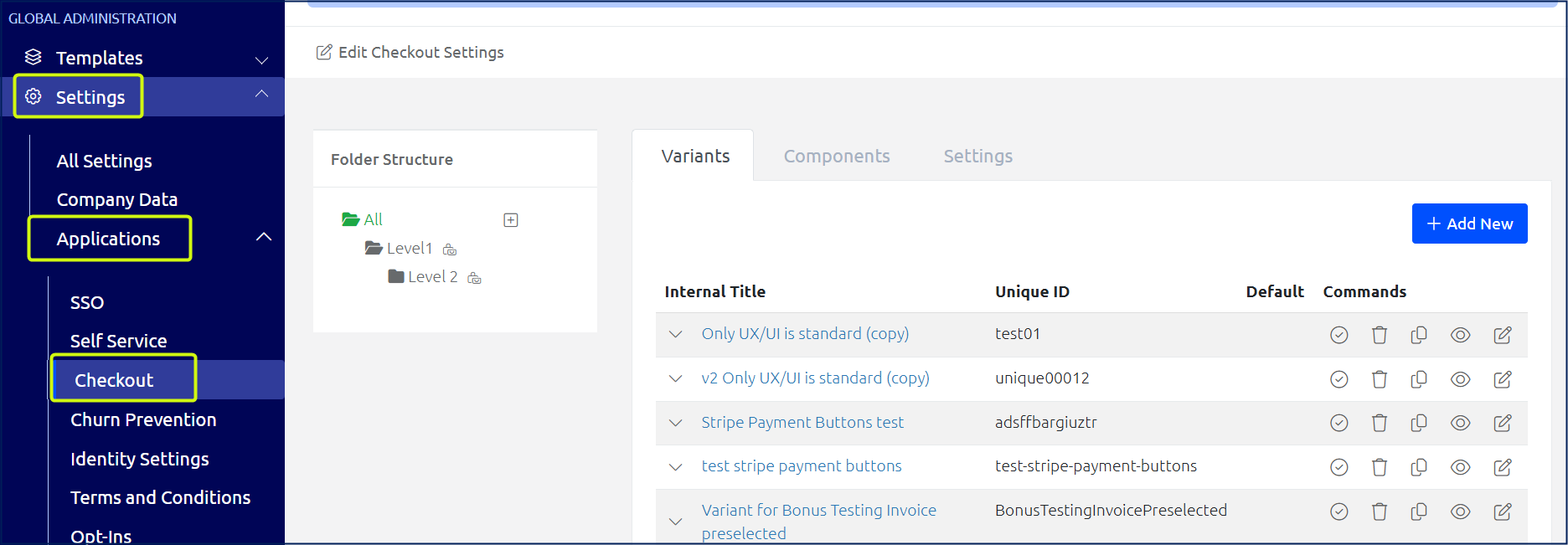
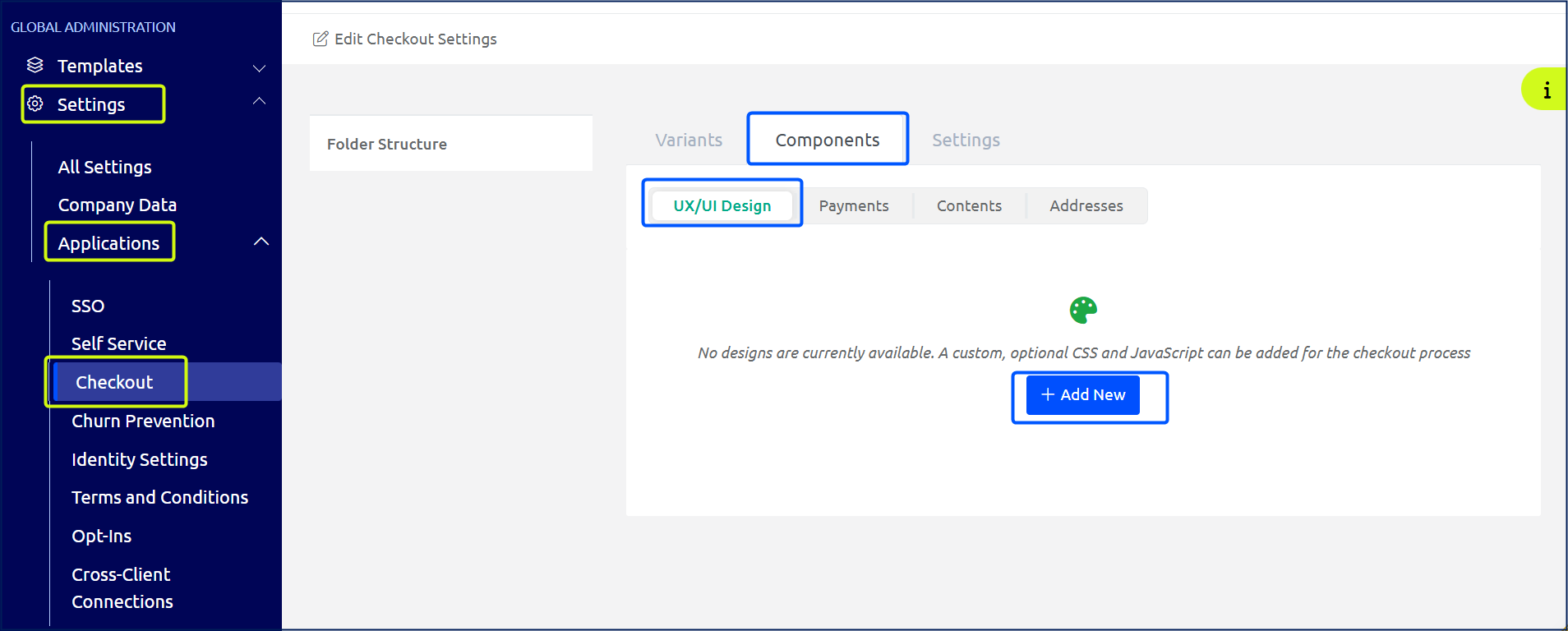
1. The CSS/Javascript has to be inserted both in the Checkout Editor and in the SSO.
**SSO**:
- Open the menu item **Settings** > **Applications** > **SSO**.
- Open the tab **UX/UI Design** and click on **Edit**.
- Insert your CSS/Javascript.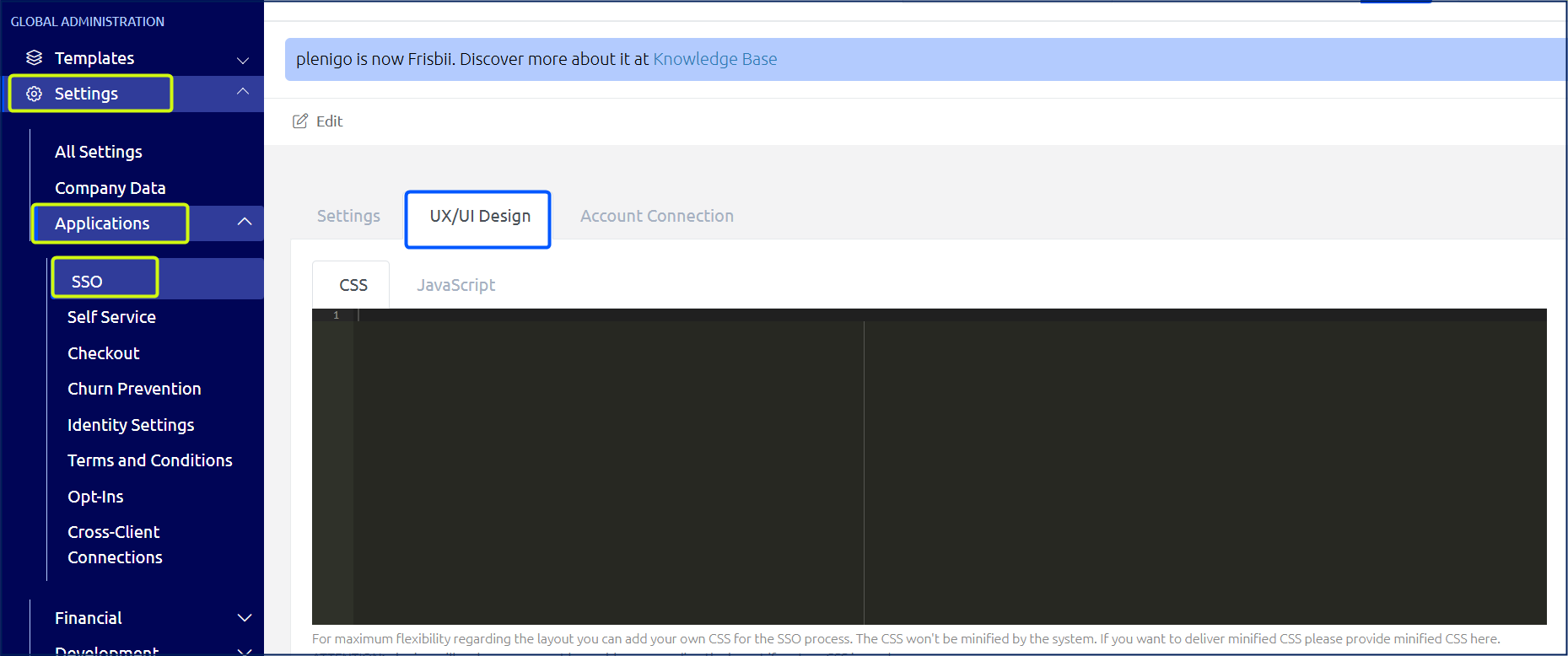
**Checkout Editor**:
- Open the menu item **Settings** > **Applications** > **Checkout**.
- Open the tab **Components**.
- In the tab **UX/UI Design**, click on **Add New** and insert the CSS/Javascript.
> [!NOTE]
> Adjust colors
>
> If you have only adjusted the colors in the old checkout editor, you can copy the CSS that we provide in the Knowledge Base and also paste it into the SSO and Checkout menu item and adjust your color codes accordingly. [CSS Example](/frisbii-media/docs/css-beispiel)
1. Use the Checkout Editor to create a new variant. A detailed documentation can be found here: [New Checkout](/frisbii-media/docs/neuer-checkout)
After you have successfully created the variant, the new variant ID must be integrated into your integration to be able to test the settings.
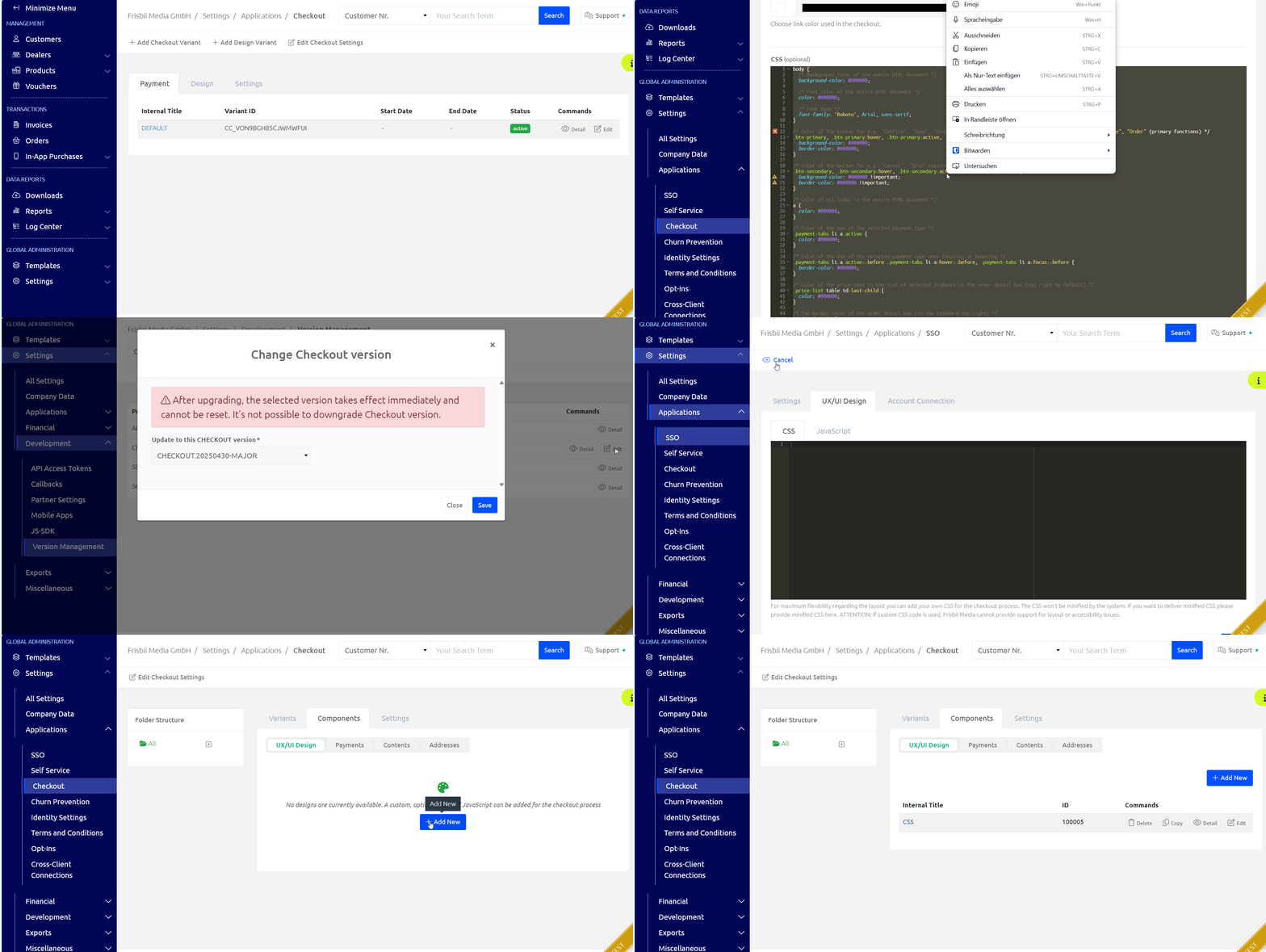
#### **Instruction Video**
---
## Upgrade Your Integration
The previous JavaScript URL must be replaced by the new version.
**Please note** that as soon as the new JavaScript URL has been integrated, the **old** checkout variants will no longer work. To be able to test the **new** checkout variant created in the Merchant Backend, the variant ID must be inserted into your integration.
**Please** **also** **note** that the API endpoint for calling these settings are now separated into Checkout and SSO.
- Checkout settings endpoint: [https://api.frisbii-media-stage.com/api/v3.0/processes/settings/checkout](https://api.frisbii-media-stage.com/#tag/Process-Settings/operation/getCheckoutProcessSettings)
- SSO settings endpoint: [https://api.frisbii-media-stage.com/api/v3.0/processes/settings/sso](https://api.frisbii-media-stage.com/#tag/Process-Settings/operation/getSsoProcessSettings)
- More information can be found in the API documentation: [plenigo API v3](https://api.frisbii-media-stage.com/#tag/Process-Settings)
Please update your integration on your **STAGE** system as follows:
1. Change the URL.
```javascript
```
2. Replace it with the new URL (the companyId is no longer needed).
```javascript
```
3. Test your integration on **STAGE**. Make sure that all your configurations are working properly and make adjustments if required.
4. When you’re done testing, update your integration on your **LIVE** system accordingly.
> [!WARNING]
> Google Sign-In
>
> If you are using Google Sign-In as SSO provider, make sure that the new URLs are stored in the Google Cloud Console. Find more information in this article: [**SSO Contracting Company**](/frisbii-media/docs/sso-vertragsunternehmen)
>
> For **Stage**:
>
> - https://sso-v3.frisbii-media-stage.com
>
> For **Live**:
>
> - https://sso-v3.frisbii-media.com
Do not hesitate to contact our integration team in case of any questions or technical issues ([support@frisbii.com](mailto:support@frisbii.com)).
> [!NOTE]
> Note
>
> The old checkout version will be supported until the **end** of **2025**. Until then, we will continue to fix bugs, but will not implement any new functions or improvements. All future functions will only be implemented in the new checkout version.
#### **Helpful resources**
JavaScript documentation: [Javascript SDK](/frisbii-media/docs/javascript-sdk)
Checkout: [Checkout](/frisbii-media/docs/checkout-1)
SSO: [SSO](/frisbii-media/docs/sso-login-registration)