This guide walks through a complete checkout integration where Frisbii Media handles user authentication (SSO). Use this path when you do not have your own login system and want Frisbii Media to manage login, registration, and sessions.
When to use this guide
Frisbii Media is your SSO provider
Users log in via the Frisbii Media login iframe (
plenigo.SSO)After login, the
customerSessionfromplenigo.LoginSuccessis used for all subsequent API calls
If you manage users yourself, see Website Checkout with External Users.
Flow overview
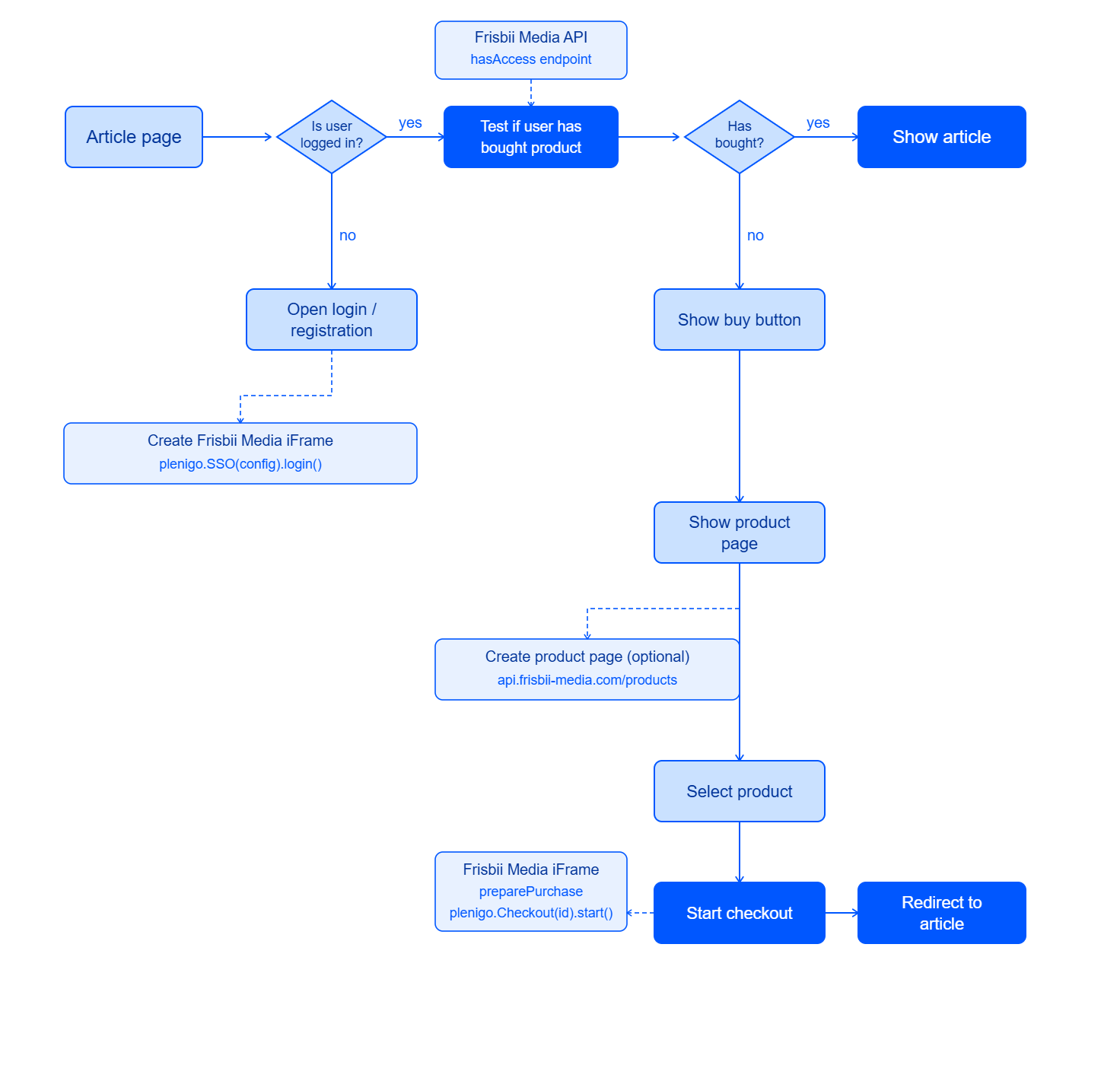
Step 1 – Check access (server-side, on every page load)
Use the Customer API with the session stored in your server-side session:
// Session was stored after a previous LoginSuccess event
$session = $_SESSION['plenigo_customer_session'] ?? null;
if ($session) {
    try {
        $response = json_decode($client->request('GET',
            'https://customer-api.frisbii-media.com/api/v1.0/accessRights/hasAccess',
            ['headers' => ['X-plenigo-customer-session' => $session]]
        )->getBody()->getContents());
        $hasAccess = $response->accessGranted;
    } catch (\Exception $e) {
        $hasAccess = false;
    }
} else {
    $hasAccess = false;
}
if ($hasAccess) {
    // show protected content — stop here
}
// otherwise: show paywall
Step 2 – Show the login / registration iframe
If the user is not logged in, show the Frisbii Media SSO iframe. Once they log in or register, the LoginSuccess event fires:
document.addEventListener("plenigo.LoginSuccess", function(e) {
    if (e.type !== "plenigo.LoginSuccess") return false;
    // Send the session to your backend via AJAX or form POST
    fetch('/store-session', {
        method: 'POST',
        headers: { 'Content-Type': 'application/json' },
        body: JSON.stringify({ customerSession: e.detail.customerSession })
    }).then(function() {
        // Session stored — now prepare the purchase
        startCheckout(e.detail.customerSession);
    });
});
new plenigo.SSO({ elementId: "plenigoLogin" }).login();
On your backend, store the session:
// POST /store-session
$data = json_decode(file_get_contents('php://input'), true);
$_SESSION['plenigo_customer_session'] = $data['customerSession'];
Step 3 – Prepare the purchase (server-side)
if (!empty($_SERVER['HTTP_X_FORWARDED_FOR'])) {
    $ip = $_SERVER['HTTP_X_FORWARDED_FOR'];
} else {
    $ip = $_SERVER['REMOTE_ADDR'];
}
$payload = [
    'debugMode'       => false,
    'customerIpAddress' => $ip,
    'customerSession' => $_SESSION['plenigo_customer_session'],
    'items'           => [
        ['plenigoOfferId' => 'O_YOUR_OFFER_ID', 'quantity' => 1],
    ],
];
$response = json_decode($client->request('POST', '/checkout/preparePurchase', [
    'headers' => ['X-plenigo-token' => eyJhbGciOiJIUzI1NiIsInR5cCI6IkpXVCJ9],
    'json'    => $payload,
])->getBody()->getContents());
$purchaseId = $response->purchaseId;
Step 4 – Render the checkout iframe
function startCheckout(customerSession) {
    // purchaseId is rendered into the page by PHP
    new plenigo.Checkout("<?php echo $purchaseId; ?>", {
        elementId: "plenigoCheckout"
    }).start();
}
document.addEventListener("plenigo.PurchaseSuccess", function(e) {
    if (e.type !== "plenigo.PurchaseSuccess") return false;
    var orderId = parseInt(e.detail.orderId);
    if (orderId > 0) {
        location.href = "/success/?order=" + orderId;
    } else {
        // orderId -1: already purchased
        location.href ="/already-subscribed/";
    }
});
Step 5 – Verify access on the success page
After the purchase completes, verify access before displaying content:
$response = json_decode($client->request('GET',
    'https://customer-api.frisbii-media.com/api/v1.0/accessRights/hasAccess',
    ['headers' => ['X-plenigo-customer-session' => $_SESSION['plenigo_customer_session']]]
)->getBody()->getContents());
if ($response->accessGranted) {
    // Show content
}