Overview
This article shows exactly which Merchant Backend setting produces each piece of information a customer sees in Self Service. For an explanation of what each Self Service snippet lets the customer do, see Self Service Snippets instead — this article only covers the traceability between backend configuration and frontend display.
Payment Methods
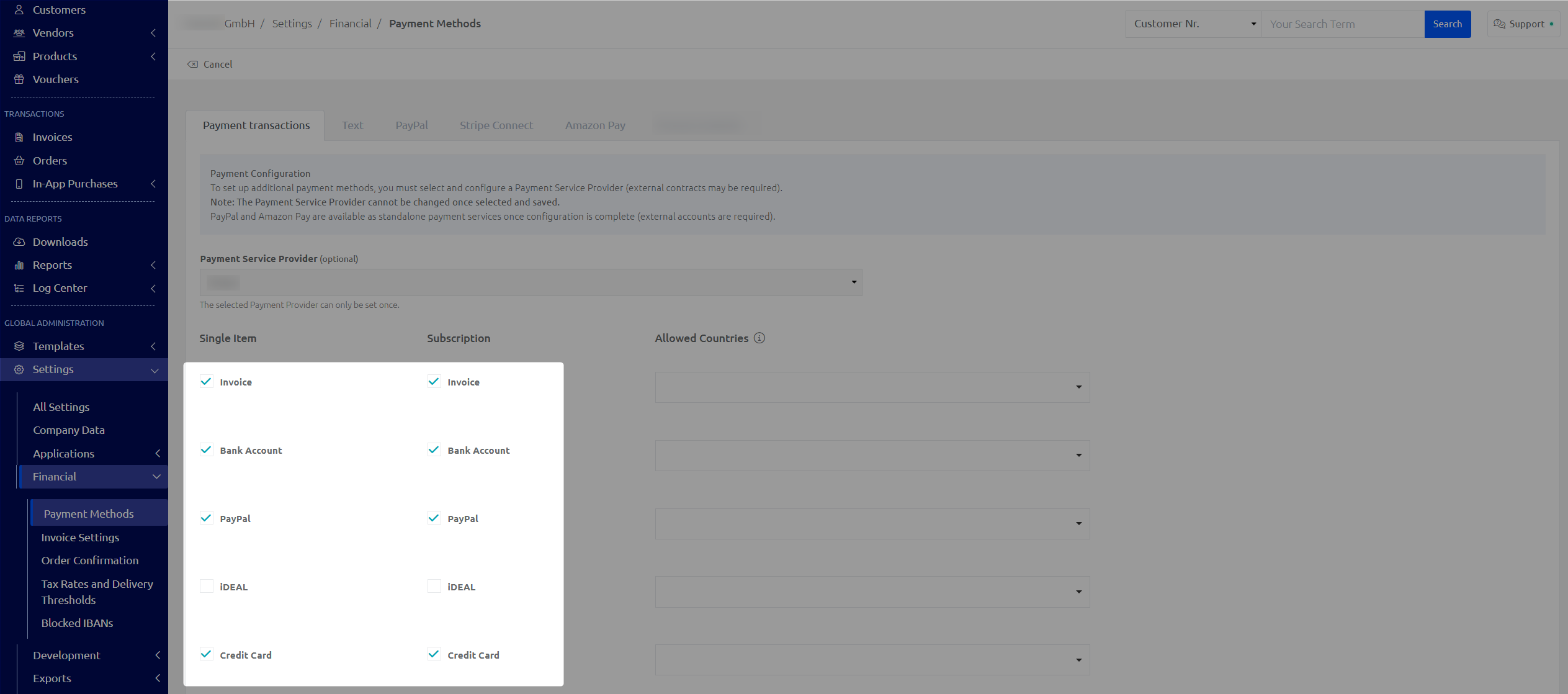
The payment methods that are linked and activated in the Frisbii Media Merchant Backend can also be stored by the customer in Self Service. For this example, 4 payment methods have been activated in the "Payment Methods" sub-item:
PayPal
SEPA
Credit card
Invoice
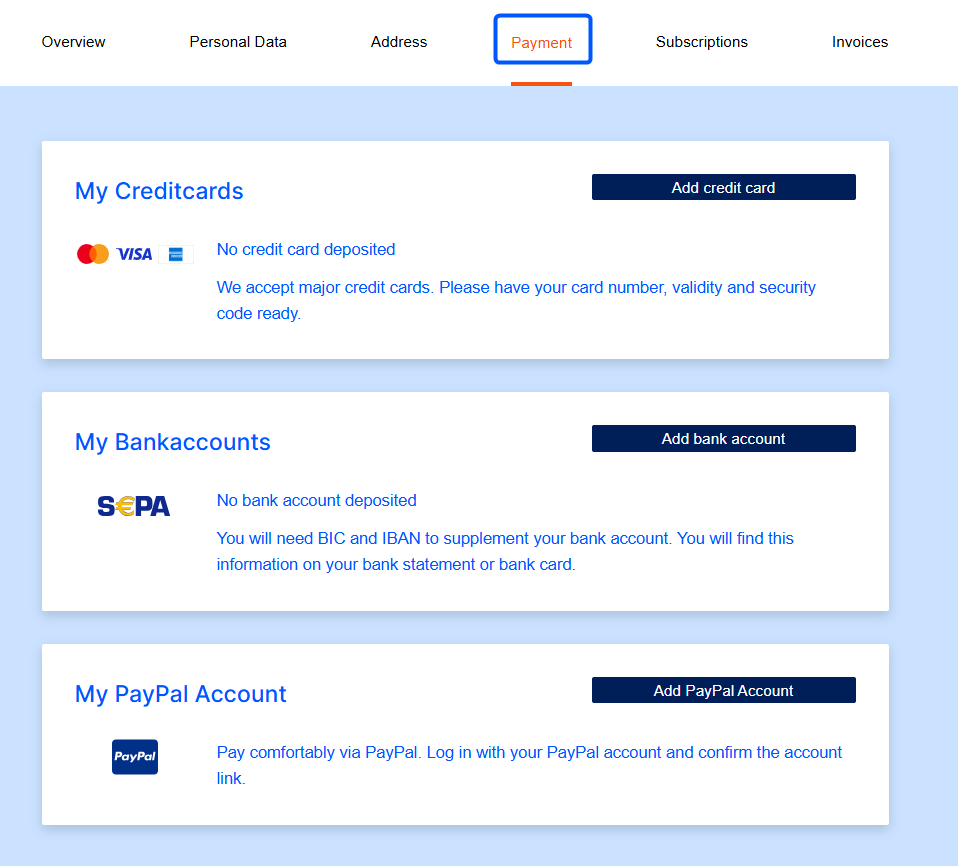
These payment options are now displayed in the "Payment methods" snippet in Self Service. The "Invoice" option is not displayed, as only an address is required.
Subscriptions — Offer Info
With regard to the offer creation, the display in Self Service differs according to the type of offer. Be it a single product, a subscription with one step, a subscription with more than 1 step or a subscription with bundle products.
Subscription with bundle
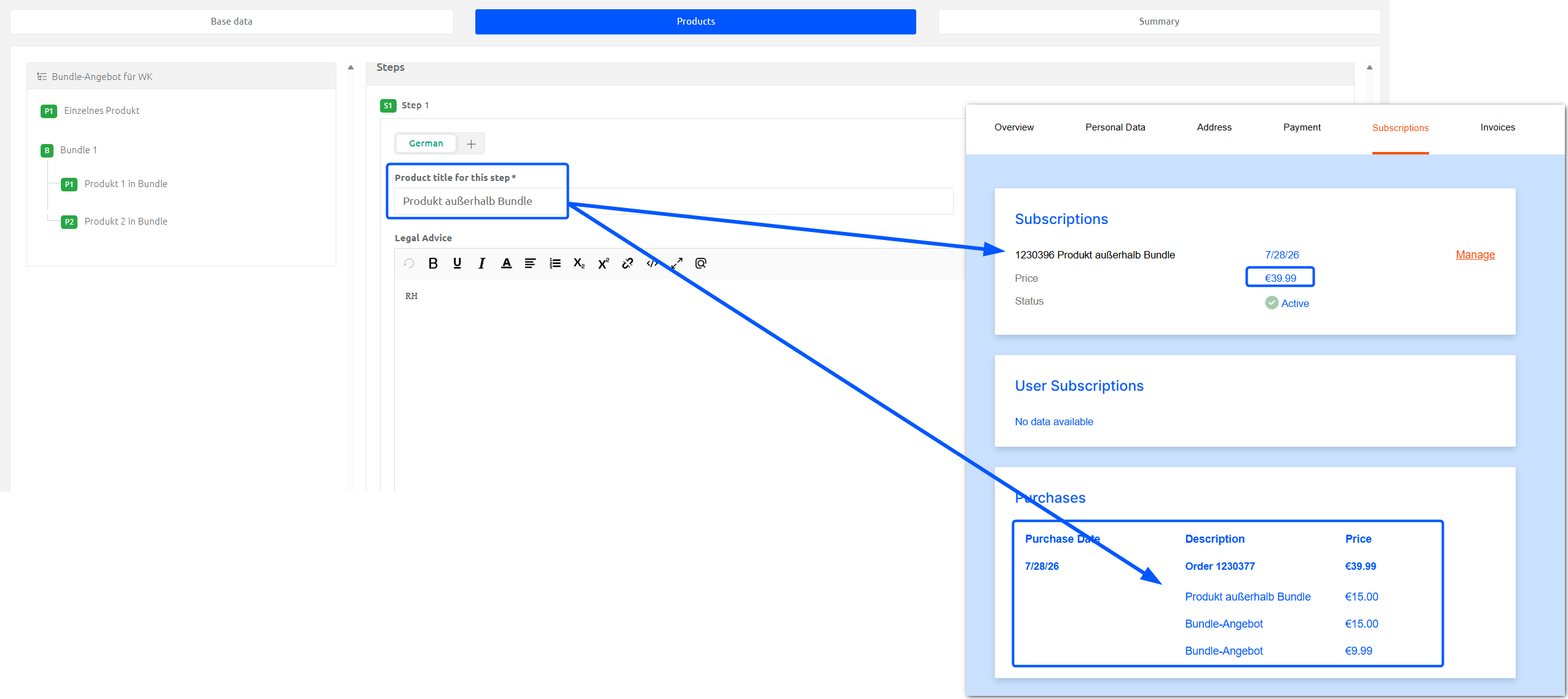
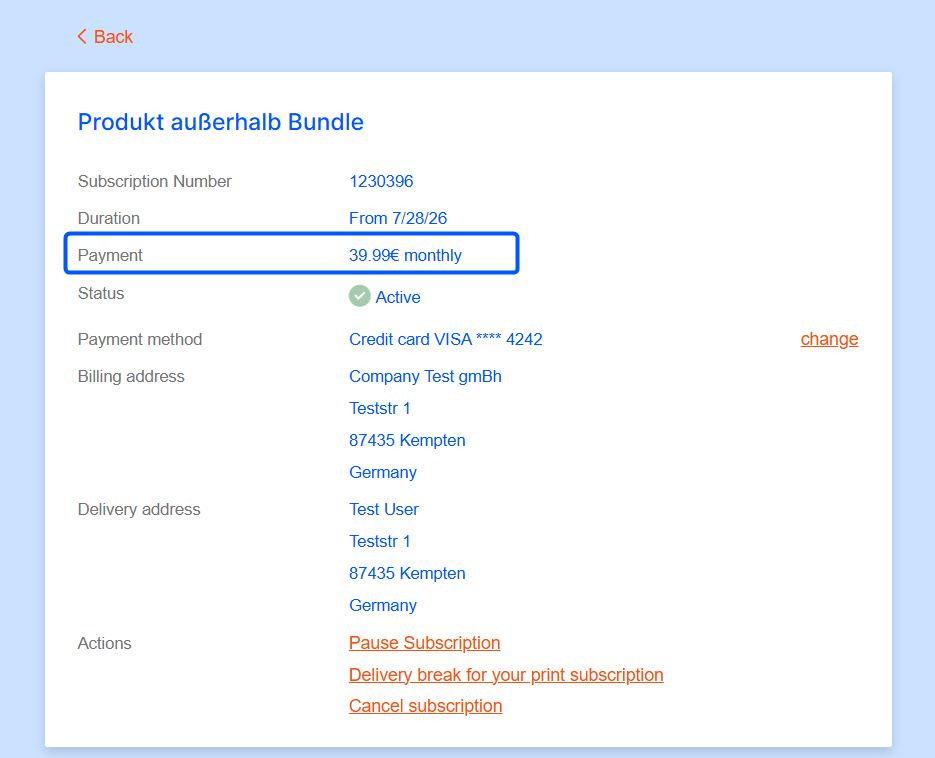
The product titles you defined in the offer for each individual step is displayed in the Self Service. In the Purchases tile the product prices are listed individually. In the Subscription tile, the total gross price is displayed.
The accounting period is also given for subscriptions. This is displayed in the detail view. This view is opened by clicking on "Details" of a subscription.
Subscription with two steps
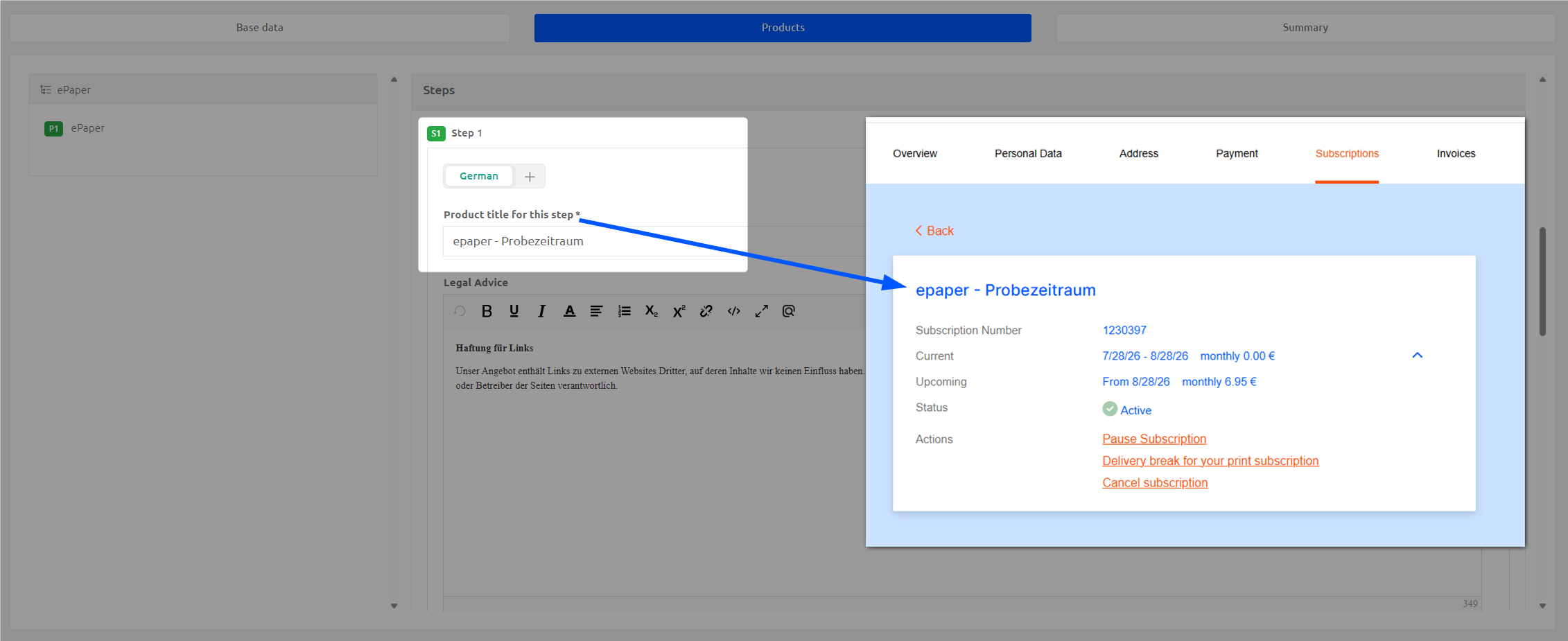
When you have a subscription with more than one step, the currently active step’s product title is displayed in the Subscription details view in Self Service.
Subscriptions — cancellation & churn prevention
Cancellation options
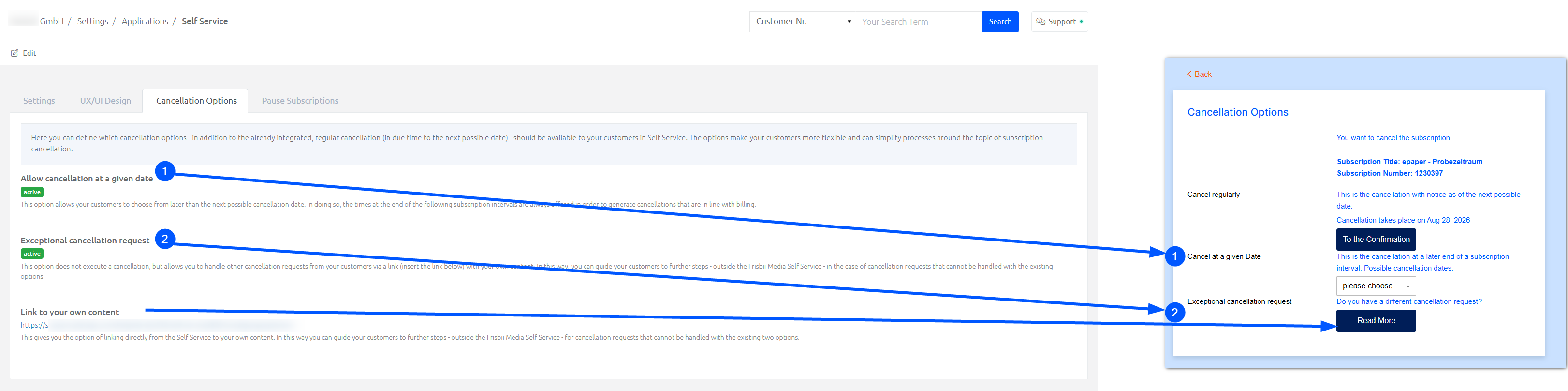
In the Merchant Backend, you can define cancellation options for your customers. If deactivated, they are not displayed in the Self Service. If activated, your customers can find them via Subscriptions → Manage → Cancel subscription.
Churn Prevention
Frisbii Media offers the module Churn Prevention which you can set up to ask customers for a reason to cancel and give them the opportunity to change their subscription (up-/down-sell).
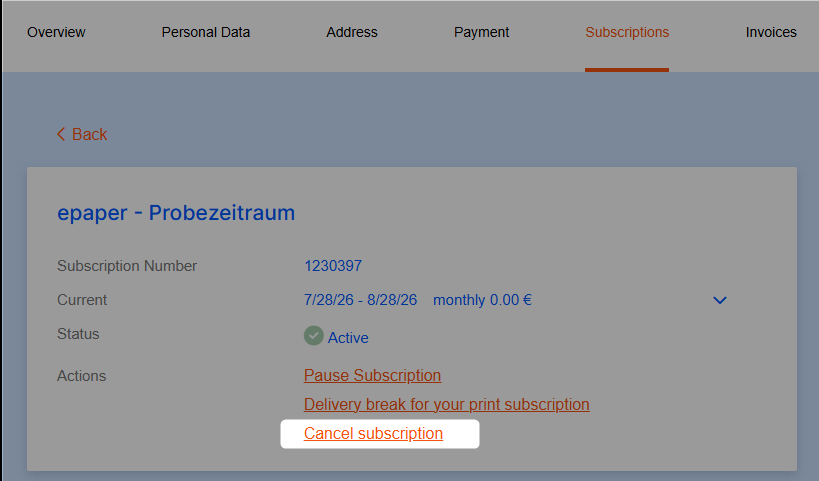
In Self Service, the cancellation process is initiated via Subscriptions → Manage → Cancel subscription.
Subscriptions — Pausing & Delivery Break
Pause Subscription
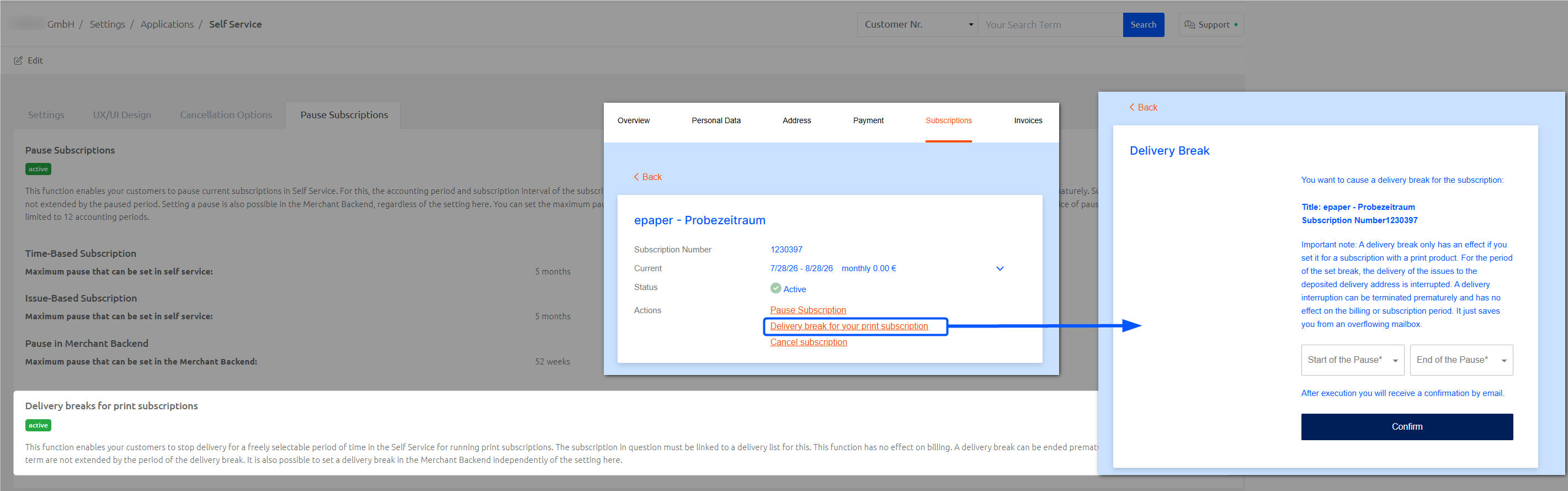
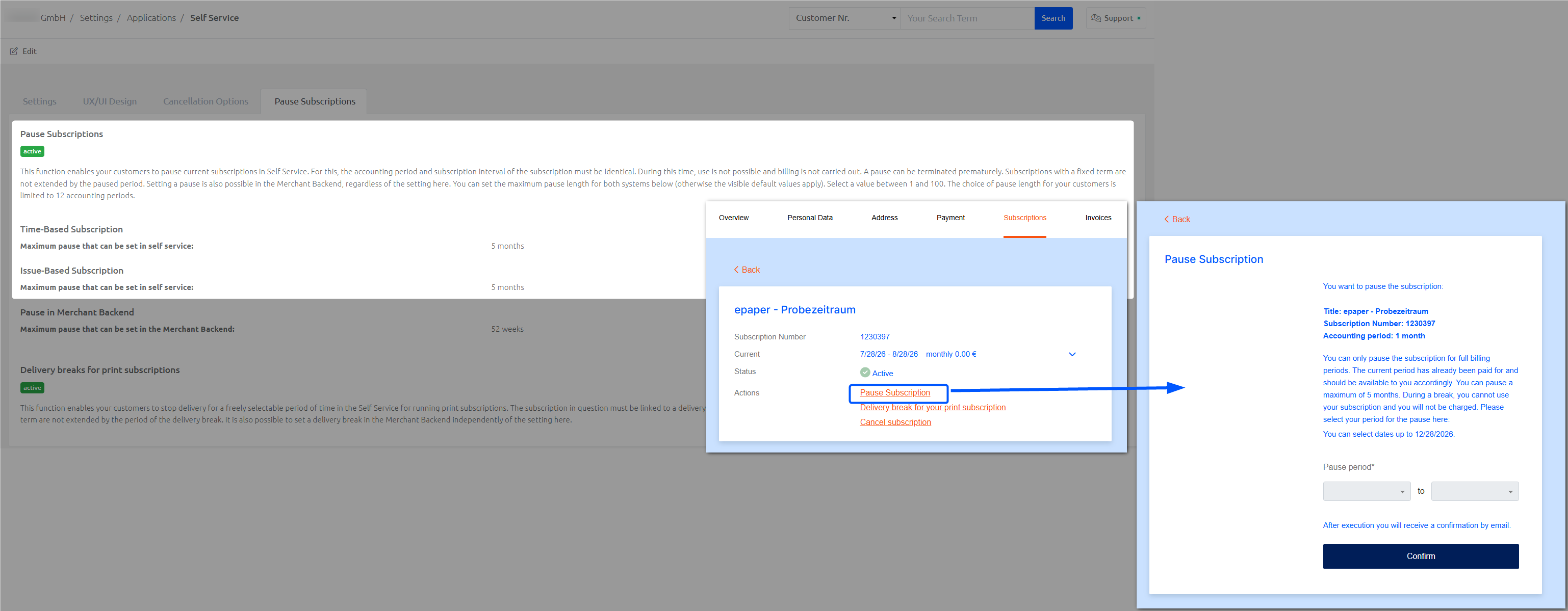
In the Merchant Backend, you can define whether your customers are allowed to pause their subscription, and if yes, the maximum pause that your customers can set. If activated, the Pause Subscription button and dialog window can be found via Subscriptions → Manage.
Delivery Break
In the Merchant Backend, you can define whether your customers are allowed to set a delivery break for their subscription, and if yes, the maximum break that your customers can set. If activated, the Delivery Break for your print subscription button and dialog window can be found via Subscriptions → Manage.