Overview
An access right is a named permission that Frisbii Media grants to a customer when they purchase an offer. It tells your website, app, or content management system what the customer is allowed to access — for example, premium articles or an e-paper edition.
Access rights are created in the Merchant Backend and must be assigned to at least one offer before they become active. When a customer completes a purchase, Frisbii Media grants the corresponding access rights to their account. Your external system then checks those access rights via the Frisbii Media API to decide whether to display or block content.
Good to know: Access rights must be set up before you create your offers. They are a required component of every offer in the Merchant Backend.
Create access rights
To create an access right, follow these steps:
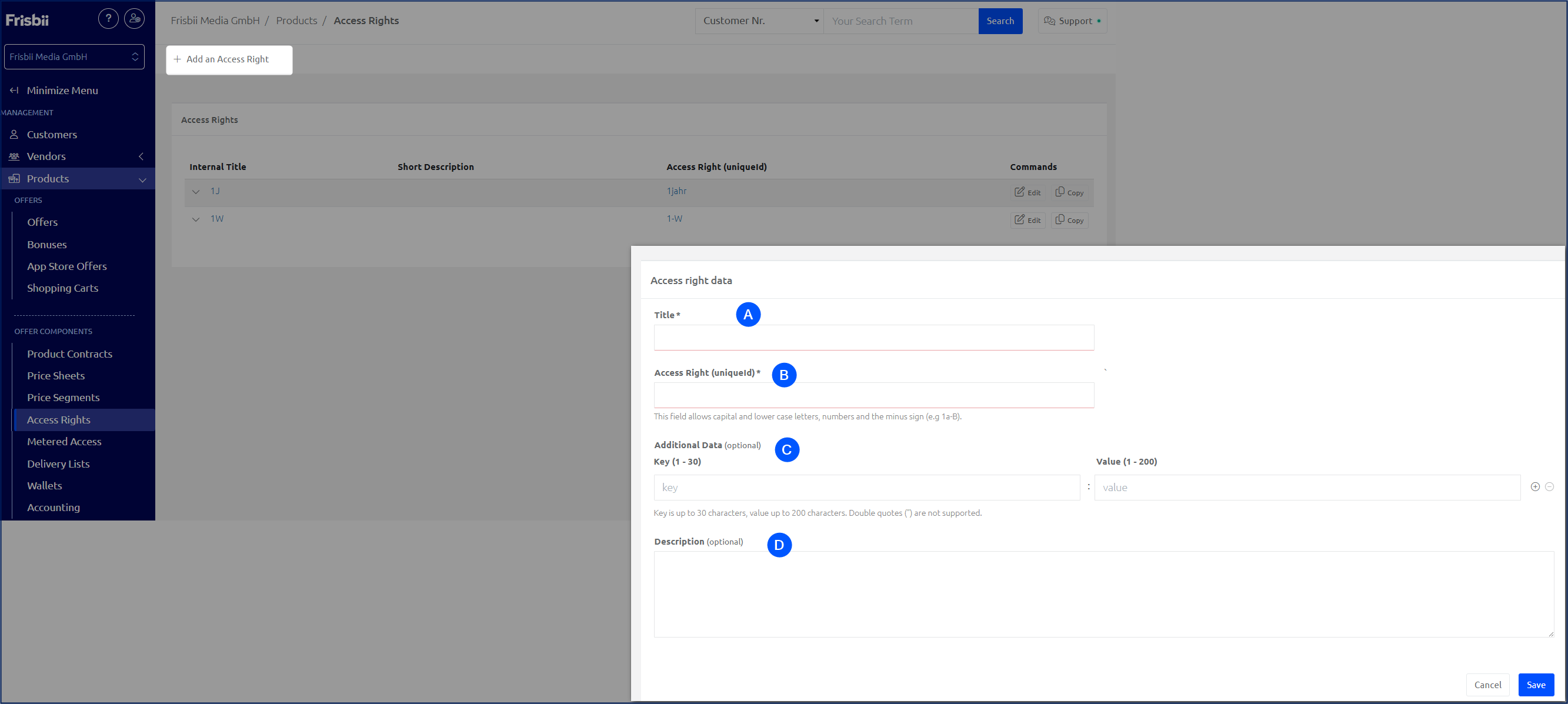
In the navigation bar, click on Products → Access Rights.
Click on Add an Access Right.
Fill in the following fields:
Title: A name for internal use only. Customers never see this.
Access right (uniqueID): The unique identifier used to grant and check the permission in your external system. For example,
epaperorarticle_plus. The uniqueID must be unique across all access rights in your account and is shared with your CMS or paywall system — coordinate this value with your technical team before creating it.Additional data for third-party systems (optional): Use this field to pass extra metadata to connected systems via the API, for example a product code or category identifier that your CMS needs to map the access right correctly.
Description (optional): A short note describing what this access right unlocks. For example, "gives access to plus articles". Useful for internal reference when managing multiple access rights.
Important
Do not rename or change the uniqueID once active subscriptions exist. Your CMS or paywall uses this ID to verify customer access — changing it will break the connection for existing subscribers.
Example
A publisher wants to sell two different types of content: website articles and an e-paper edition. They create two access rights — articles and epaper — and then build three separate offers from them:
Three offers can be flexibly created from these two access rights:
Offer 1: Access to exclusive articles on a website, through access right articles
Offer 2: Access to the electronic edition of a magazine, through access right epaper
Offer 3: Combination package of offer 1 and 2, through both access rights - articles and epaper
How access rights control content access
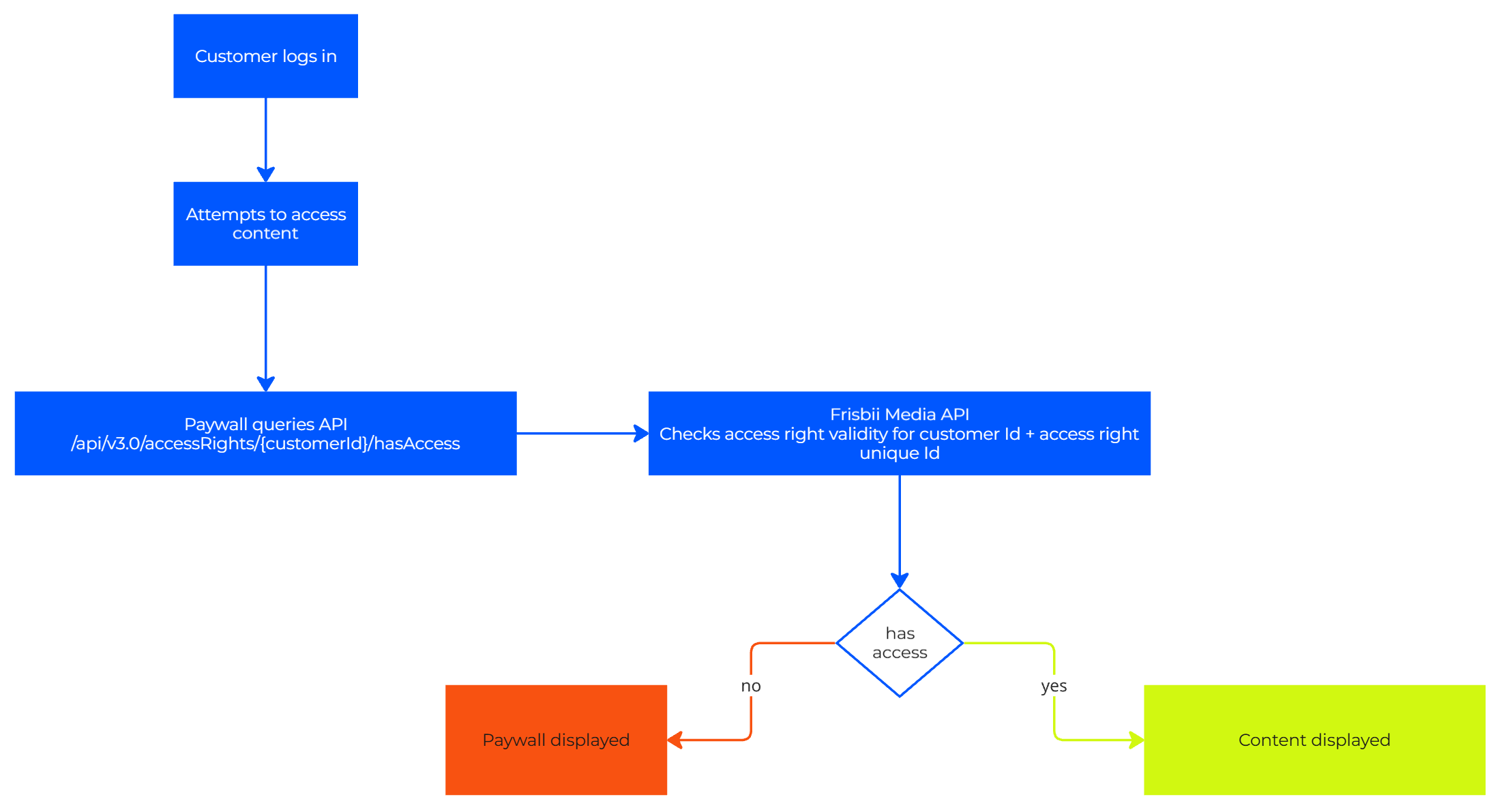
For access rights to control content access on your website or application, they must be verified through the Frisbii Media API.
The verification process works as follows:
Customer logs in to your website or application
Customer attempts to access protected content (e.g., a premium article, e-paper edition, or exclusive video)
Your paywall system queries the Frisbii Media API using the customer's ID and the required access right's uniqueID
API returns the access status — whether the customer has a valid access right
Content is displayed or blocked based on the API response
Check and manage access rights in the customer account
Once a customer has completed a purchase, Frisbii Media grants the corresponding access rights to their account. You can view, edit, and block these access rights directly in the customer account in the Merchant Backend — useful for troubleshooting access issues or making manual adjustments.
In the customer account, navigate to the Access Rights tab. From there you can:
Check which access rights are currently active for the customer and review details such as the uniqueID, product ID, and origin of each access right.
Edit or delete access rights that were added manually (type: external).
Block access rights for single products and time passes directly in this tab. To block a subscription access right, go to the detail view of the subscription instead.