Overview
OpenID Connect (OIDC) lets your Merchant Backend users log in with the credentials from your company's own identity provider — for example Microsoft Entra ID — instead of a separate Frisbii Media password. An administrator connects the identity provider once at contracting company level, and users can then sign in to the Merchant Backend with a single click.
Before you begin
You have the Administrator role in the Merchant Backend for the contracting company.
Your company uses an identity provider that supports OpenID Connect, for example Microsoft Entra ID.
You can create or configure an application registration with your identity provider, or someone in your IT team can do this for you.
You have decided which user group newly created users should be added to by default. See Create user groups.
Connect your identity provider
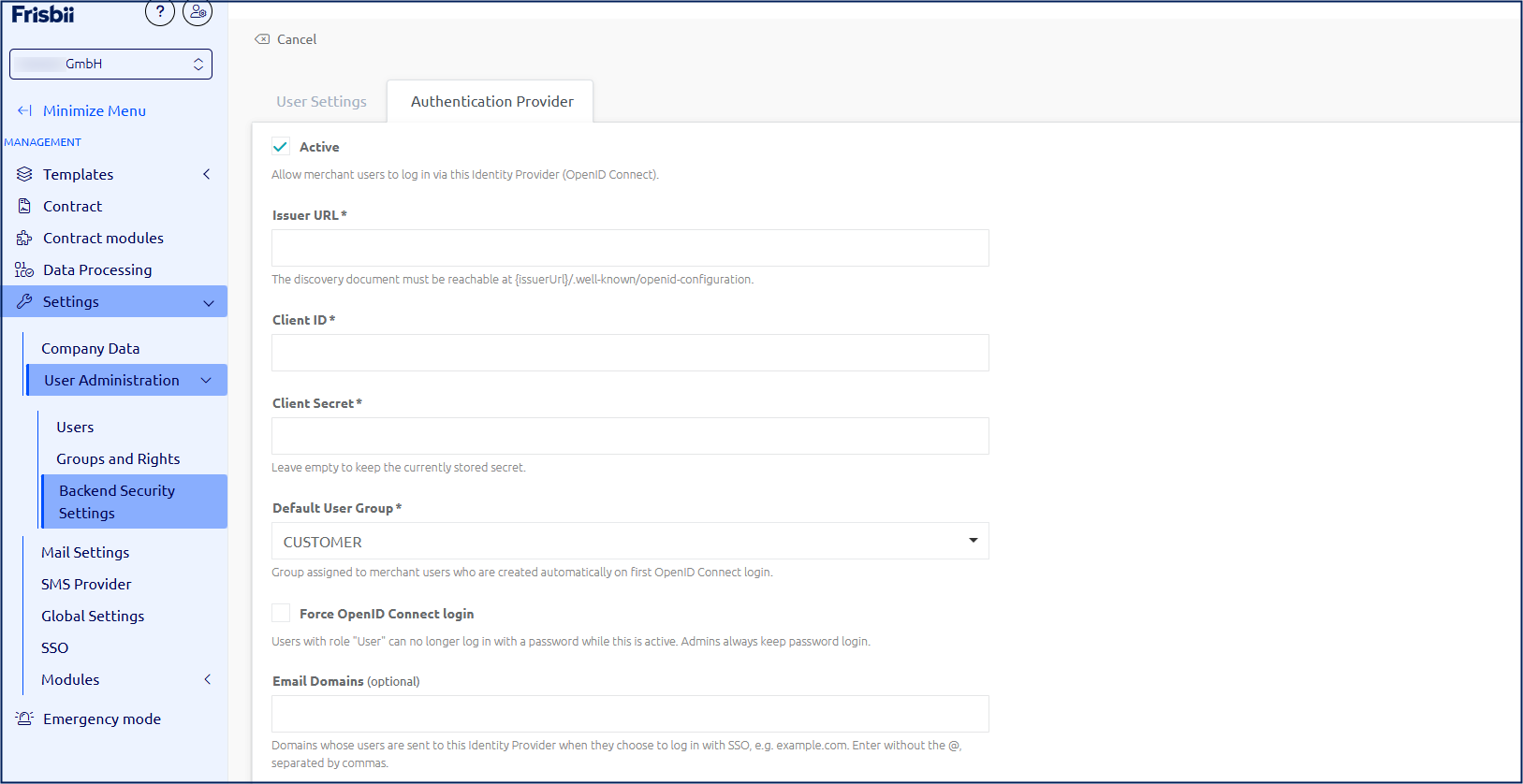
Open the contracting company's Merchant Backend and navigate to Settings → User Administration → Backend Security Settings.
In the Authentication Provider section, click Edit.
Enter the connection details: You get these information from your authentication provider platform (e.g. Microsoft Entra ID, Okta, AuthO, etc.).
Choose the user group that new Merchant Backend users are automatically added to the first time they log in via OpenID Connect. You can change the user's user group anytime after initial login (User Administration → Users).
Choose to force OpenID connect login for all users.
Note
You can keep password login available alongside OpenID Connect, or require OpenID Connect for all accounts with the User role. Administrator accounts always fall back to password login, even when OpenID Connect is required for everyone else.
Enter your email domain(s) with which users should be able to log in.
Limitations
Public email domains cannot be used for SSO. Please use a domain your company owns. The following domains are not supported:
gmail.com,googlemail.com,outlook.com,hotmail.com,live.com,yahoo.com,icloud.com,aol.com,gmx.de,gmx.net,web.de,t-online.de,freenet.de,email.com,proton.meClick on Save.
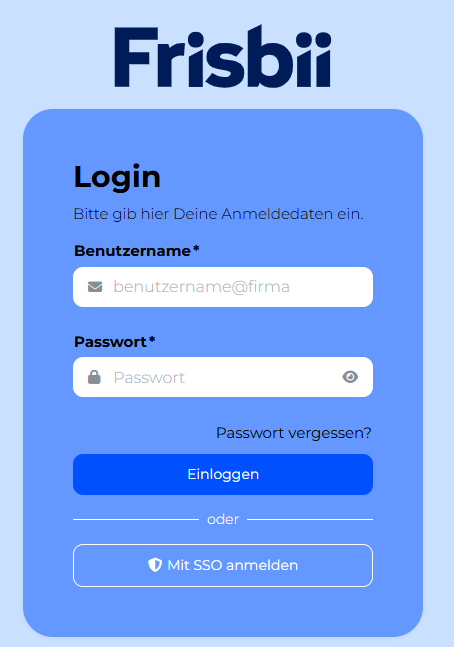
When the connection is complete, the Authentication Provider section shows your connected identity provider, and the Login with SSO option becomes available on the Merchant Backend login page.
How user accounts are created and matched
If a Merchant Backend account already exists with the same email address, that account is used for the login — no duplicate account is created.
If no matching account exists, a new user is created automatically on first login, with the User role and the default user group you selected.
Once a user logs in via OpenID Connect, they can no longer use password login or reset their password directly if "Force OpenID Connect login" is activated. An administrator can switch a user back to password login at any time from User Administration → Users.
How your users log in
On the Merchant Backend login page, the user enters their email address and selects Log in with SSO.
Sign in with your identity provider — Selecting Login with SSO redirects the user to your identity provider to sign in.
Once the identity provider confirms the login, the user is redirected back and signed in to the Merchant Backend.