Preliminary Remarks
In the Self Service, the admin can manage their multiuser subscription by themselves in the User Administration tab.
👨👩👧👦Family Subscriptions
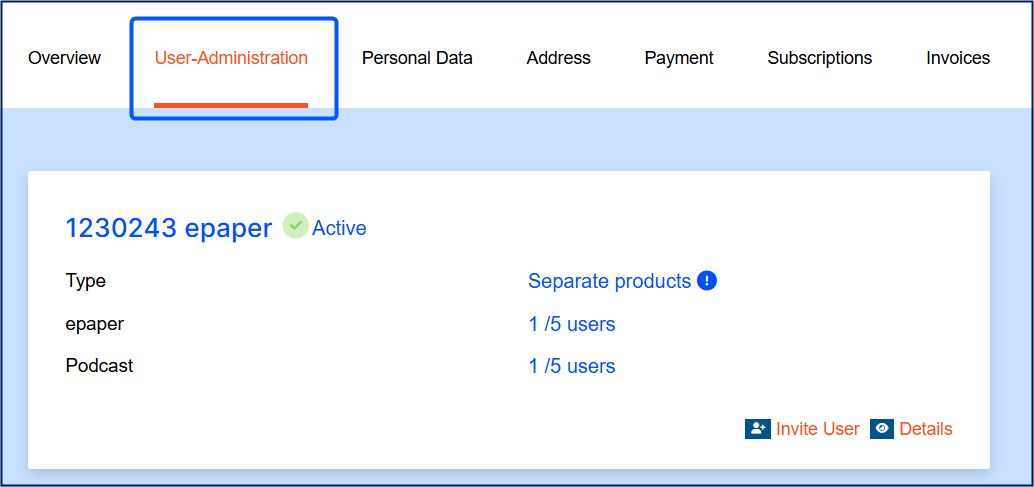
The following functions are available:
Invite users
Cancel and reactivate user subscriptions
Overview (Admin)
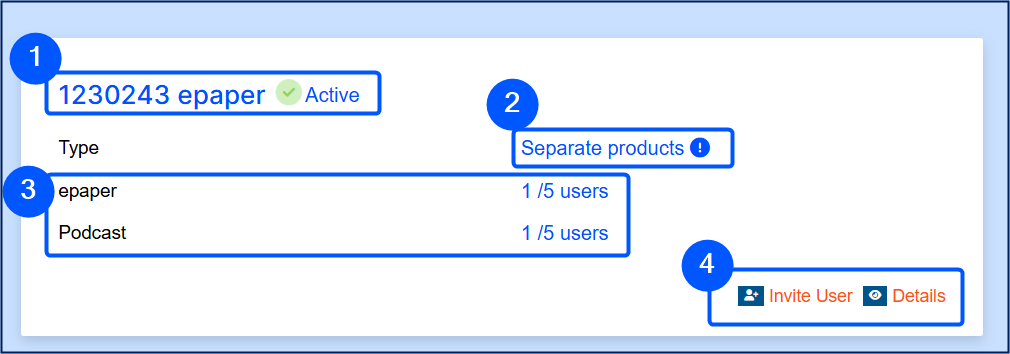
The following information is displayed in the overview:
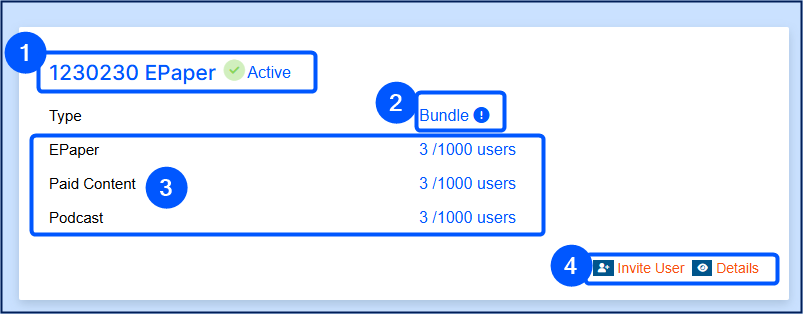
Subscription ID, offer title and status
Type (bundle or separate products)
💡Difference between bundle and separate products:
Bundle: Users automatically receive access to all products within the bundle.
Separate products: Users can be assigned to individual products and accordingly only have access to the selected product(s).
Products and corresponding number of users (occupied/maximum user count)
Invited and active users are calculated into the number of occupied spaces.Quick access “Invite User” and access to detail view
Invite User
The dialog window for inviting new users can be called up either directly via the overview or in the detail view.
The following user details can be entered into the form:
User Information
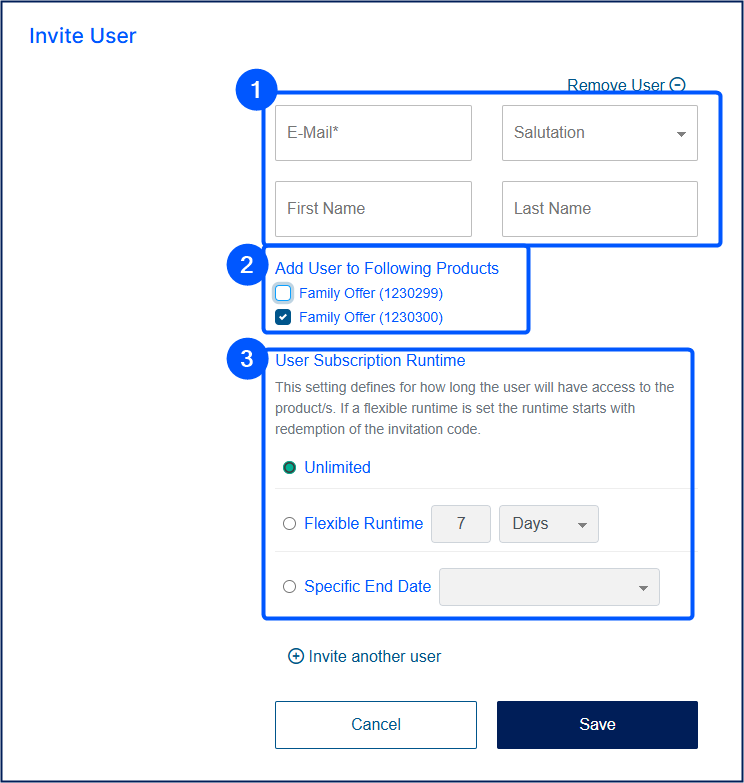
Salutation
First and last name
Email address*
Add User to Following Products*
separate products: it can be chosen which product(s) the user should be added to.
bundle: the user is automatically added to all products.
Subscription Runtime
Define for how long the user will have access to the product/s.Unlimited
Flexible Runtime
The subscription starts when the user redeems the invitation code.With Specific End Date
The subscription ends automatically on a fixed end date.
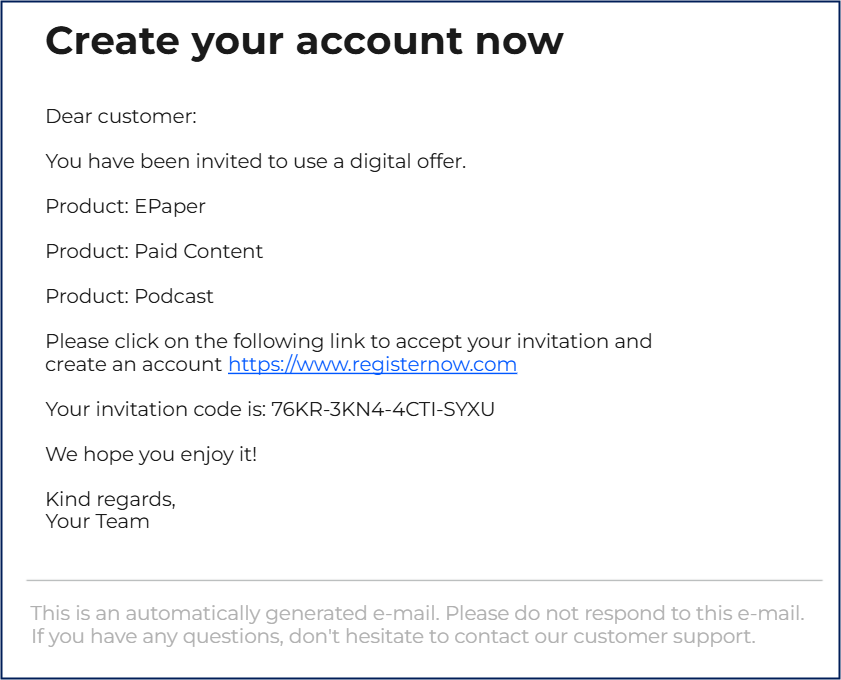
By clicking on Save, the user receives an email containing an invitation code and the link to the page on which the invitation code can be entered and the user can create their own account to access the service. This URL is stored when the multiuser offer is created: Create Multiuser Family Offer
User Administration (Admin)
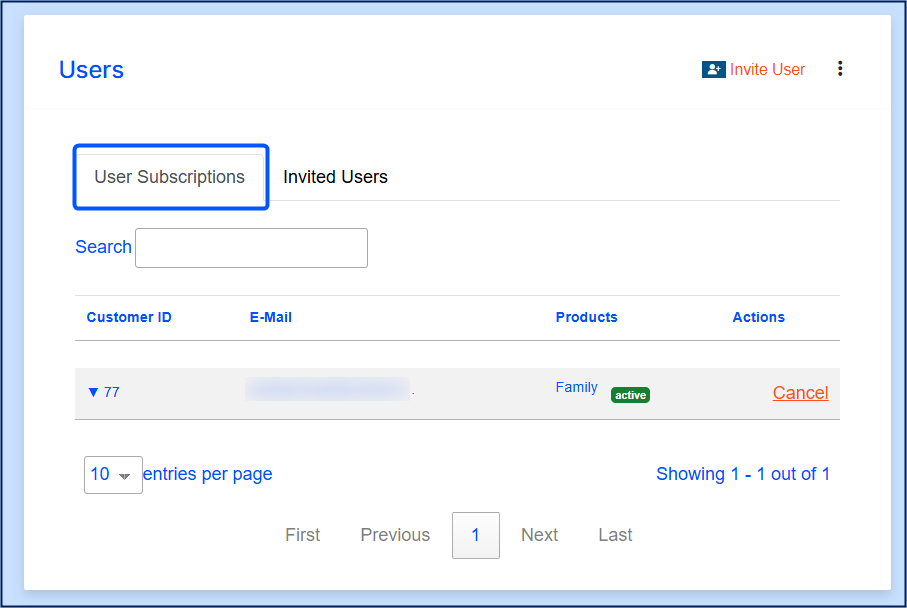
The User tile is divided into two tabs:
User Subscriptions
In the User Subscriptions tab, all users with active and canceled subscriptions are displayed in a list.
The active subscription can be canceled either immediately or at a given date in the future.
The canceled subscription can be reactivated by creating a new subscription.
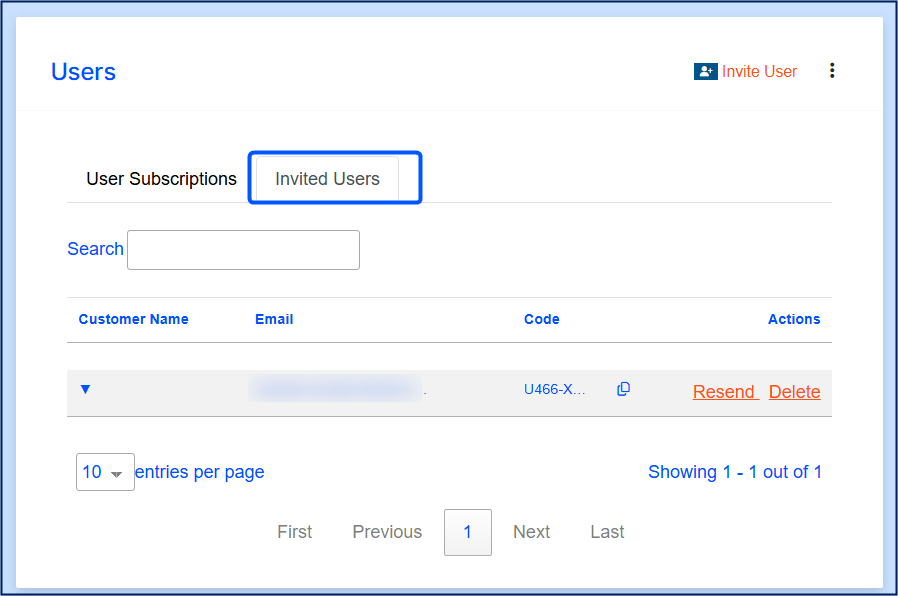
Invited Users
The Invited tab shows all users who have been invited but have not yet accepted the invitation.
Subscription Management (Users)
Subscription users can view their subscription in Self Service. Users have the option to cancel their user subscription and withdraw the cancellation at any time (as long as the main subscription is active).
The user subscription is displayed as follows:

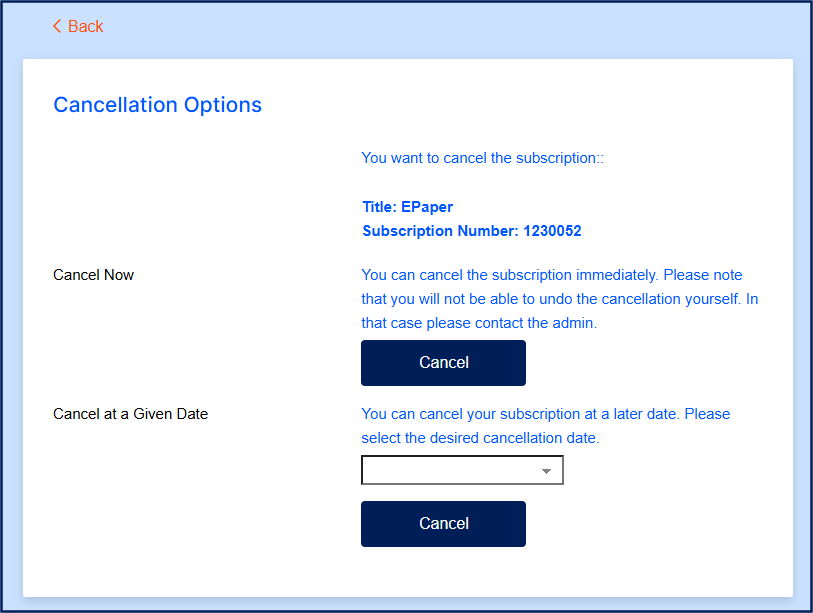
They can either cancel immediately (access will be deactivated immediately) or at a given date in the future.
Note
Users cannot undo the cancellation by themselves. If they want to have access to the subscription again, they have to reach out to the admin.
🏢Corporate Subscriptions
The following functions are available:
Invite users (manually or via CSV upload)
If a user does not yet have a customer account to access the subscription.
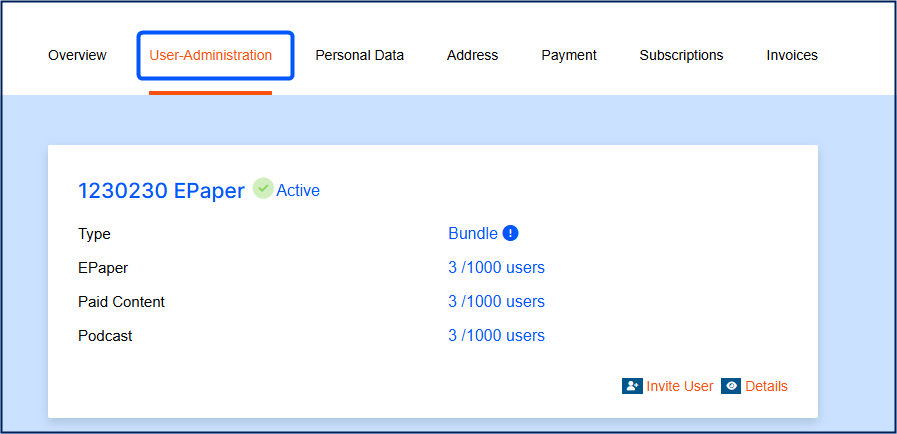
Overview (Admin)
The following information is displayed in the overview:
Subscription ID, offer title and status
Type (bundle or separate products)
💡Difference between bundle and separate products:
Bundle: Users automatically receive access to all products within the bundle.
Separate products: Users can be assigned to individual products and accordingly only have access to the selected product(s).
Products and corresponding number of users (occupied/maximum user count)
Invited and active users are calculated into the number of occupied spaces.Quick access “Invite User” and access to detail view
Invite User
The dialog window for inviting new users can be called up either directly via the overview or in the detail view.
Manual Invitation
The following user details can be entered into the form: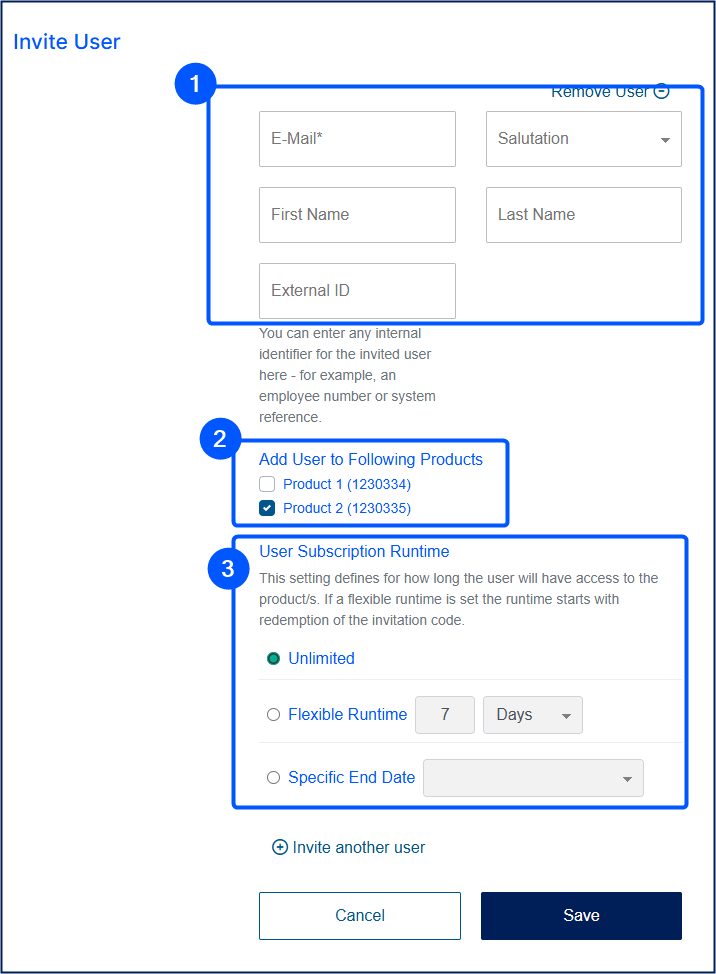
User Information
Salutation
First and last name
External ID
For example the employee number.Email address*
Add User to Following Products*
separate products: it can be chosen which product(s) the user should be added to.
bundle: the user is automatically added to all products.
Subscription Runtime
Define for how long the user will have access to the product/s.Unlimited
Flexible Runtime
The subscription starts when the user redeems the invitation code.Specific End Date
The subscription ends automatically on a fixed end date.
By clicking on Save, the user receives an email containing an invitation code and the link to the page on which the invitation code can be entered and the user can create their own account to access the service. This URL is stored when the multiuser offer is created: Create Multiuser Corporate Offer
Invitation via CSV Upload
By uploading a CSV file, a large number of new users can be invited to use a subscription.
Note
The CSV file can contain a maximum of 500 rows. Files exceeding this limit cannot be uploaded and processed.
How to access CSV upload:
In the detail view, scroll down to the Users box.
Click on the three dots in the top right-hand corner.
Click on Invite users via CSV File.
Download the CSV file and fill it in (comma-separated).
email and subscriptionItemChainIds are mandatory fields. subscriptionItemChainIds field is already prefilled with the correct Ids. They can be found in the CSV dialog.
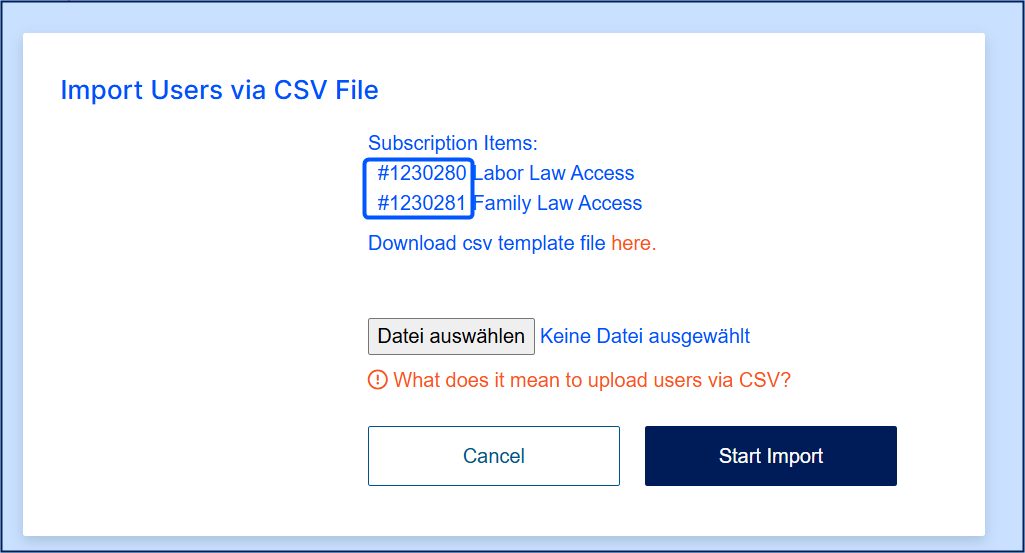
Example row:max.muster@example.com,MR,Jane,Doe,123456,[12345],14Upload the CSV file and click on Start Import. The system checks if all data are correct and automatically invites the users.
The user receives an email with an invitation code. The code can be entered on a dedicated landing page, the user is redirected to the registration form, the user creates a customer account and has access to the subscription after successful registration.
Download Invitation Codes
In the Users box, click on the three dots in the top right-hand corner and click on Download Invitation Codes.
All invitation codes are downloaded as CSV file, containing first name, last name, email and invitation code.
Email Domain Settings (Admin)
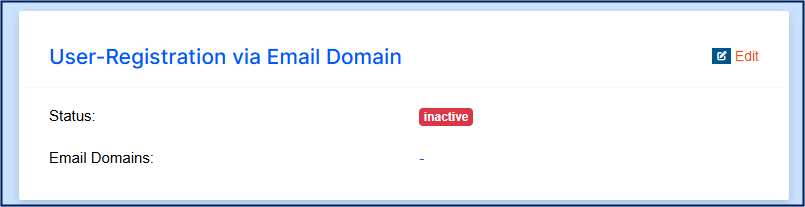
The email domain settings can be used to set whether users are allowed to register for a subscription using a specific email domain.
Note
This function requires you to provide a landing page. The page should detect the user’s email domain, and if the domain is valid, it should trigger the
addmultiuserAPI call to add the user to the multiuser subscription.
If the checkbox is ticked, the email domain must be defined in the Email domains field.
Several email domains can be entered here, if required - for example: frisbii.de and frisbii.at
User Settings (Admin)
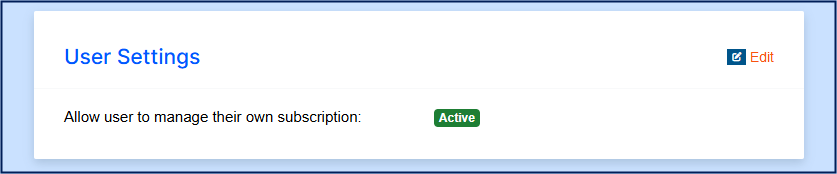
In the user settings, it can be defined whether active users can cancel their subscription by themselves in Self Service.
User Administration (Admin)
The User tile is divided into three tabs:
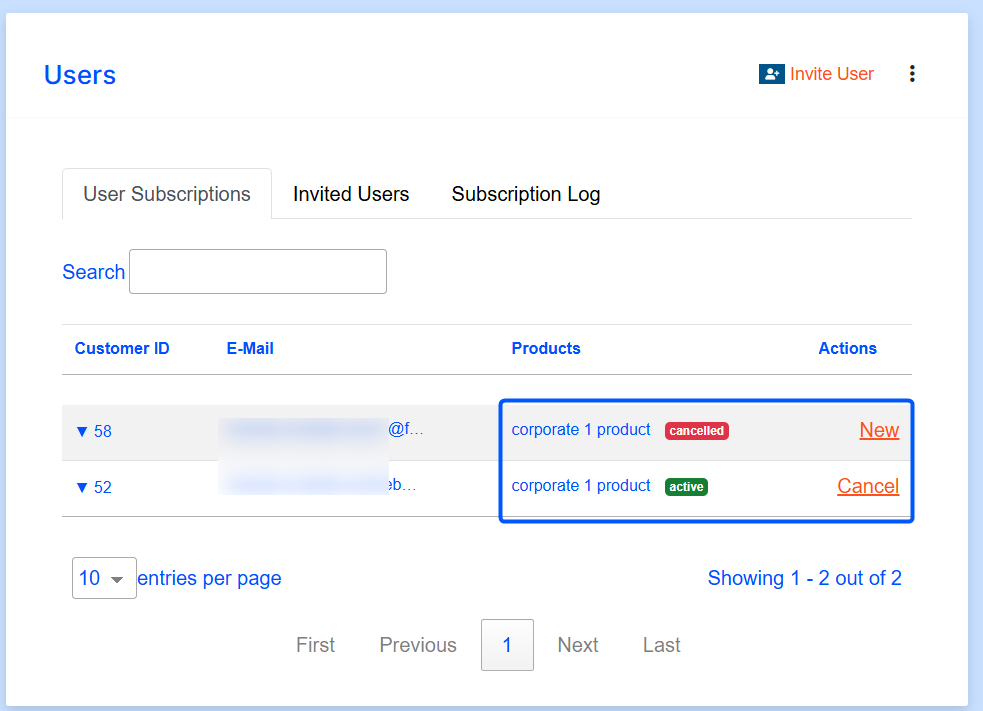
User Subscriptions
In the User Subscriptions tab, all users with active and canceled subscriptions are displayed in a list.
The active subscription can be canceled either immediately or at a given date in the future.
The canceled subscription can be reactivated by creating a new subscription.
Invited Users
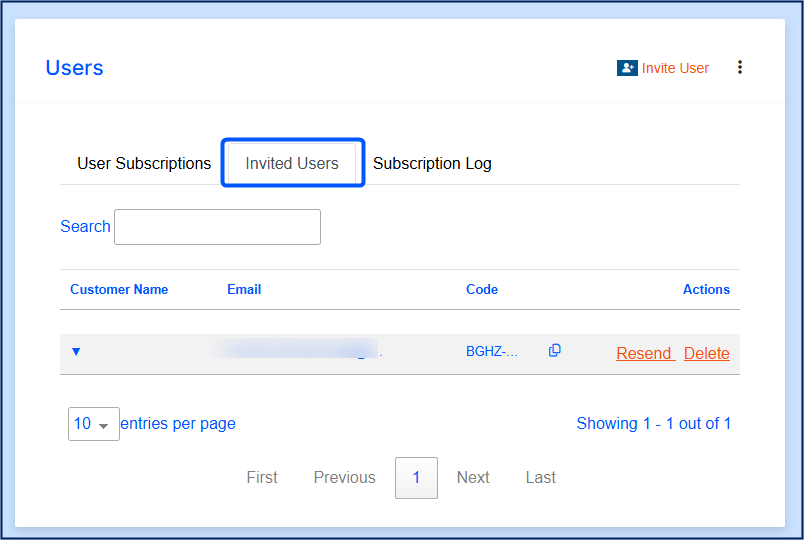
The Invited tab shows all users who have been invited but have not yet accepted the invitation.
Subscription Log
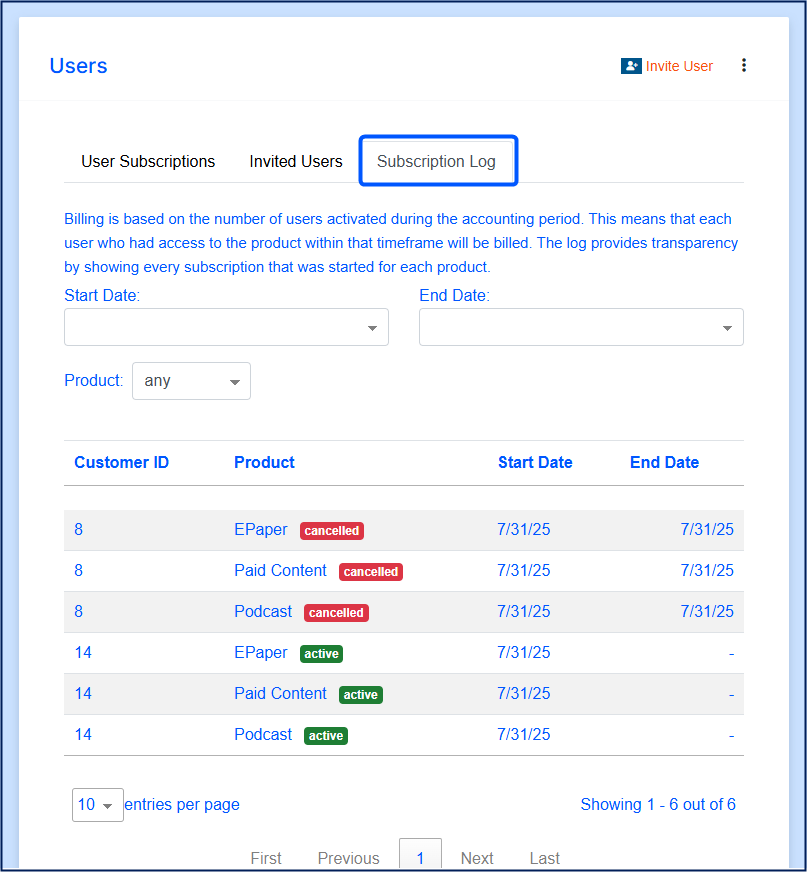
The subscription log helps to keep track of invoicing. As the active users are billed within the billing period - even if they were activated and deactivated again during this period - the log helps to show the active users within the billing period. The search can be used to filter by start and end date and product.
Subscription Management (Users)
Users can view their subscription in Self Service in the Subscriptions tab. If the admin has activated the authorization for users to manage their subscription themselves in Self Service (user settings), users have the option to cancel their user subscription and withdraw the cancellation at any time (as long as the main subscription is active).
The user subscription is displayed as follows:
If users are allowed to cancel their subscription, they have the button Cancel.
They can either cancel immediately (access will be deactivated immediately) or at a given date in the future.
Note
Users cannot undo the cancellation by themselves. If they want to have access to the subscription again, they have to reach out to the admin.